> ## Documentation Index
> Fetch the complete documentation index at: https://uncoded.ch/docs/llms.txt
> Use this file to discover all available pages before exploring further.
# 3. Set up your new unCoded account
This step replaces the Telegram registration and is required to link your user account to your Binance UID.
When creating a new account, **you will receive \$25 in license credit** automatically. This allows you to test unCoded **free of charge** at the beginning.
***
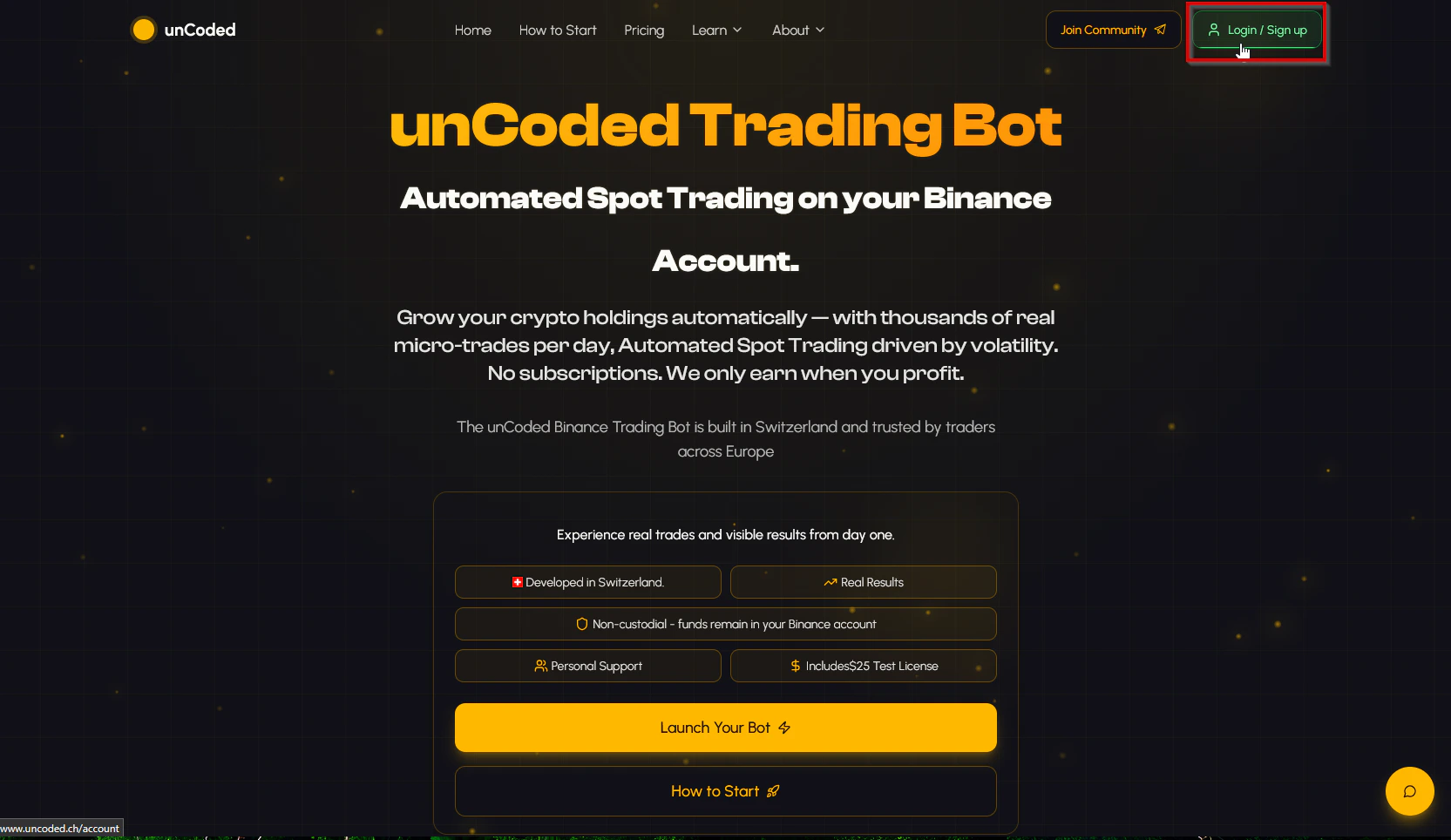 * Go to [https://uncoded.ch/](https://uncoded.ch/) and log in there using the “**Login / Sign Up**” button with your Google account.
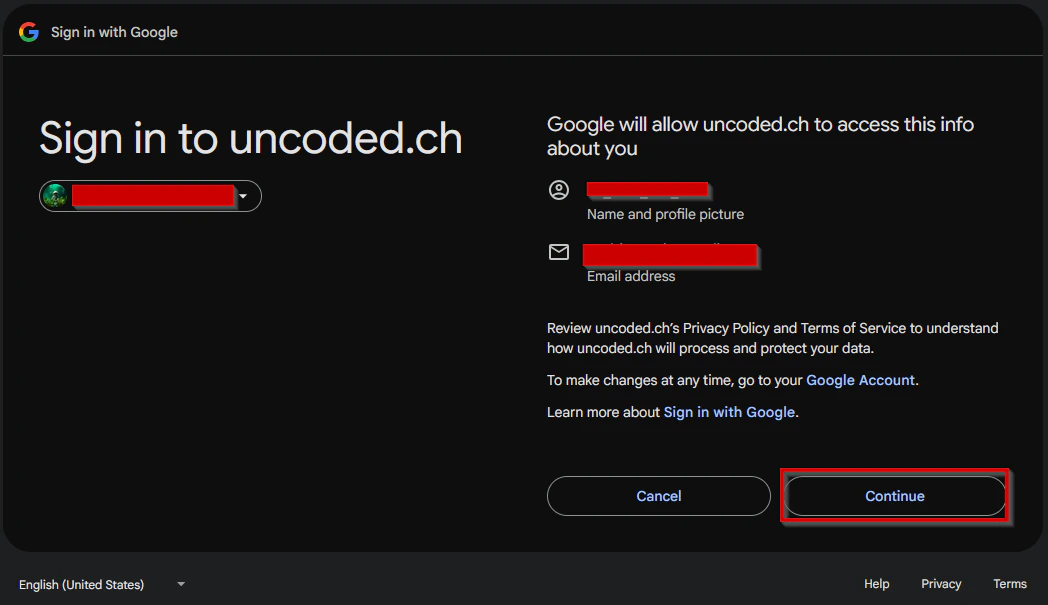 * Then confirm that you want to log inby pressing "**Continue**".
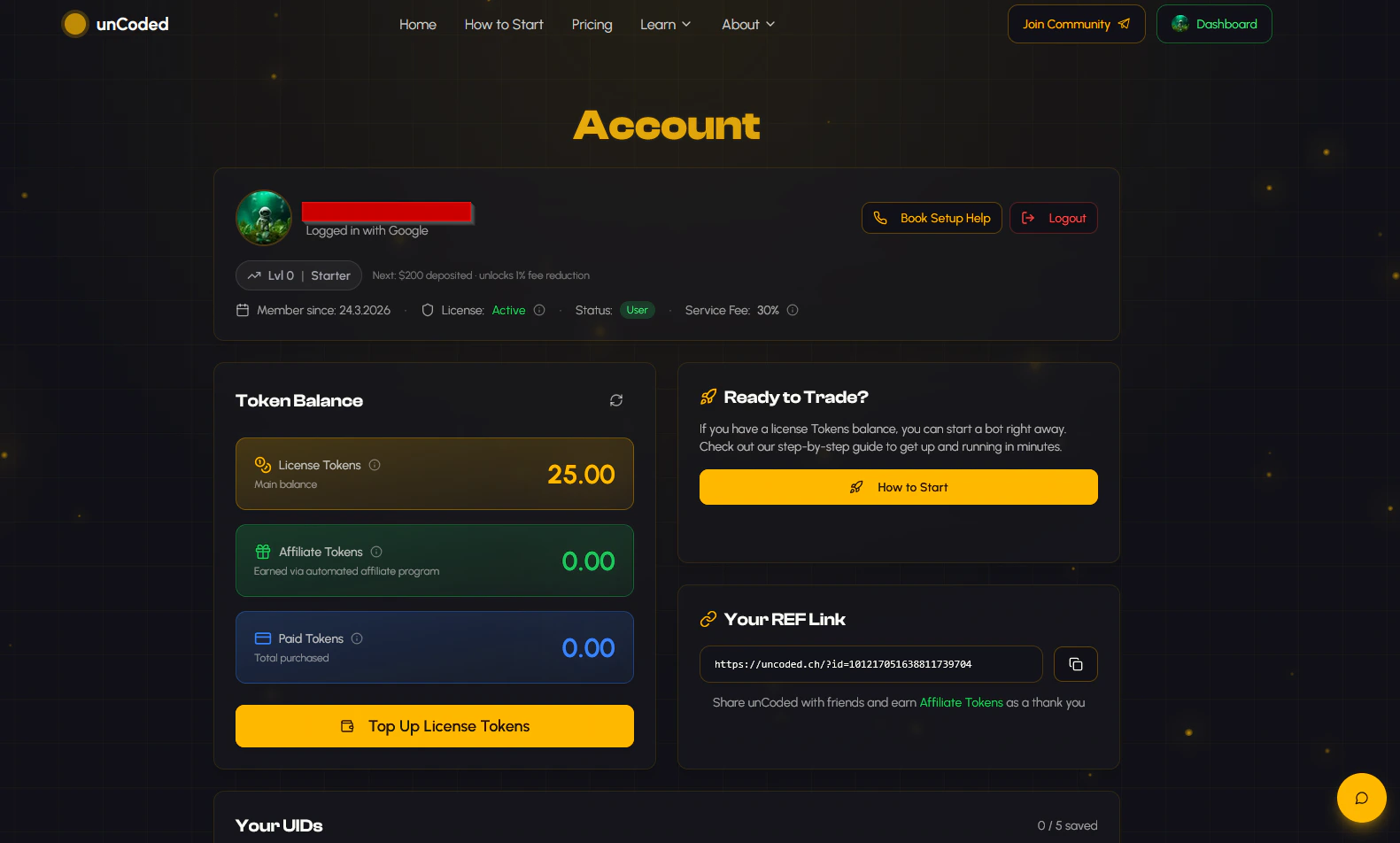 You are now in the dashboard and almost ready to get started. Next, you still need to add your **Binance UID**.
***
If you use Zeabur as your server host, you will need the **API key** to add your account. The steps themselves only differ in that you need to copy the public key from the[ API Management section](https://www.binance.com/en/my/settings/api-management) instead of the UID.
* Open your [**Binance dashboard**](https://www.binance.com/en/my/dashboard).
You are now in the dashboard and almost ready to get started. Next, you still need to add your **Binance UID**.
***
If you use Zeabur as your server host, you will need the **API key** to add your account. The steps themselves only differ in that you need to copy the public key from the[ API Management section](https://www.binance.com/en/my/settings/api-management) instead of the UID.
* Open your [**Binance dashboard**](https://www.binance.com/en/my/dashboard).
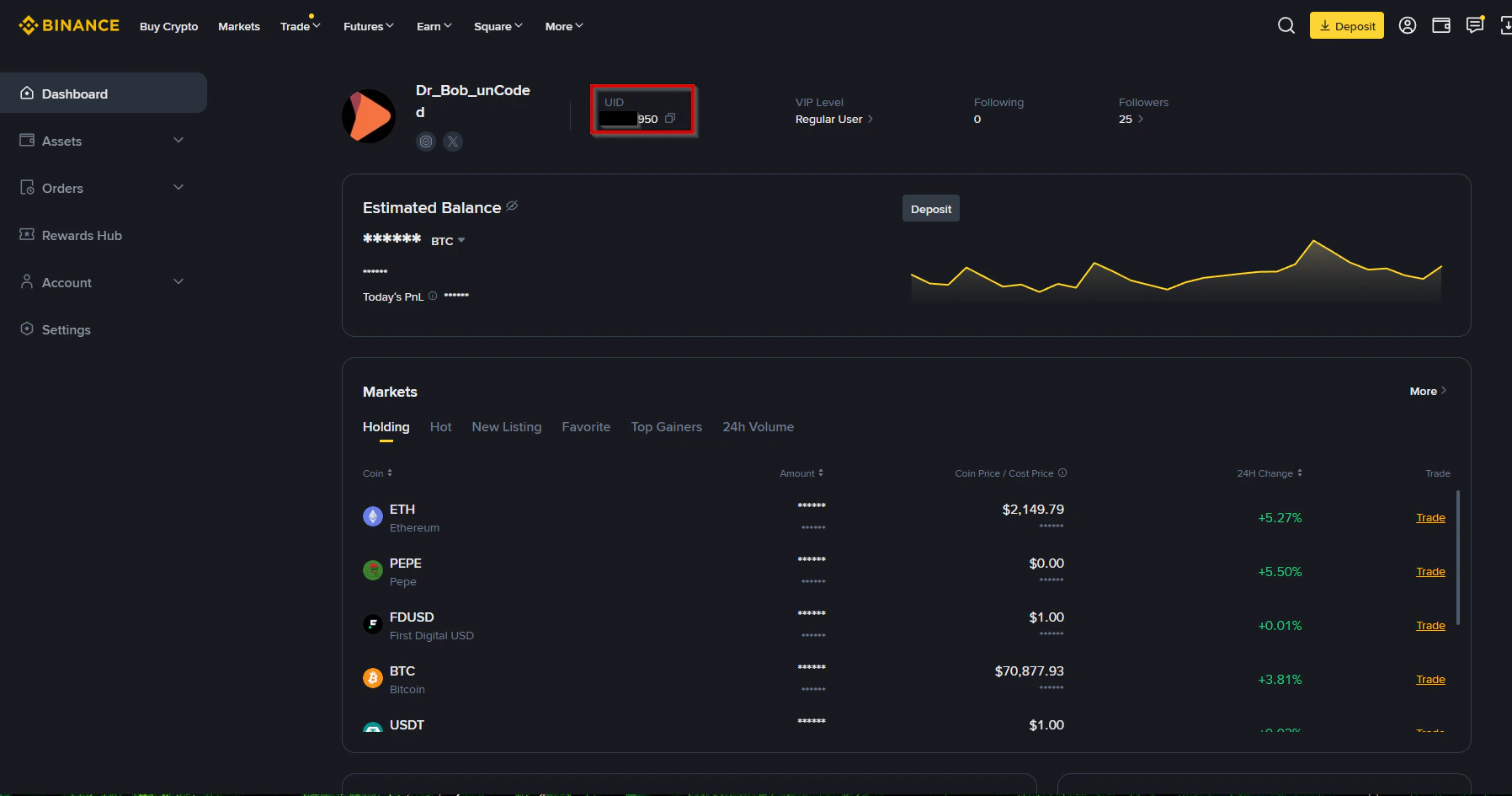 * Copy your **UID** and go back to your [**unCoded dashboard**](https://www.uncoded.ch/account).
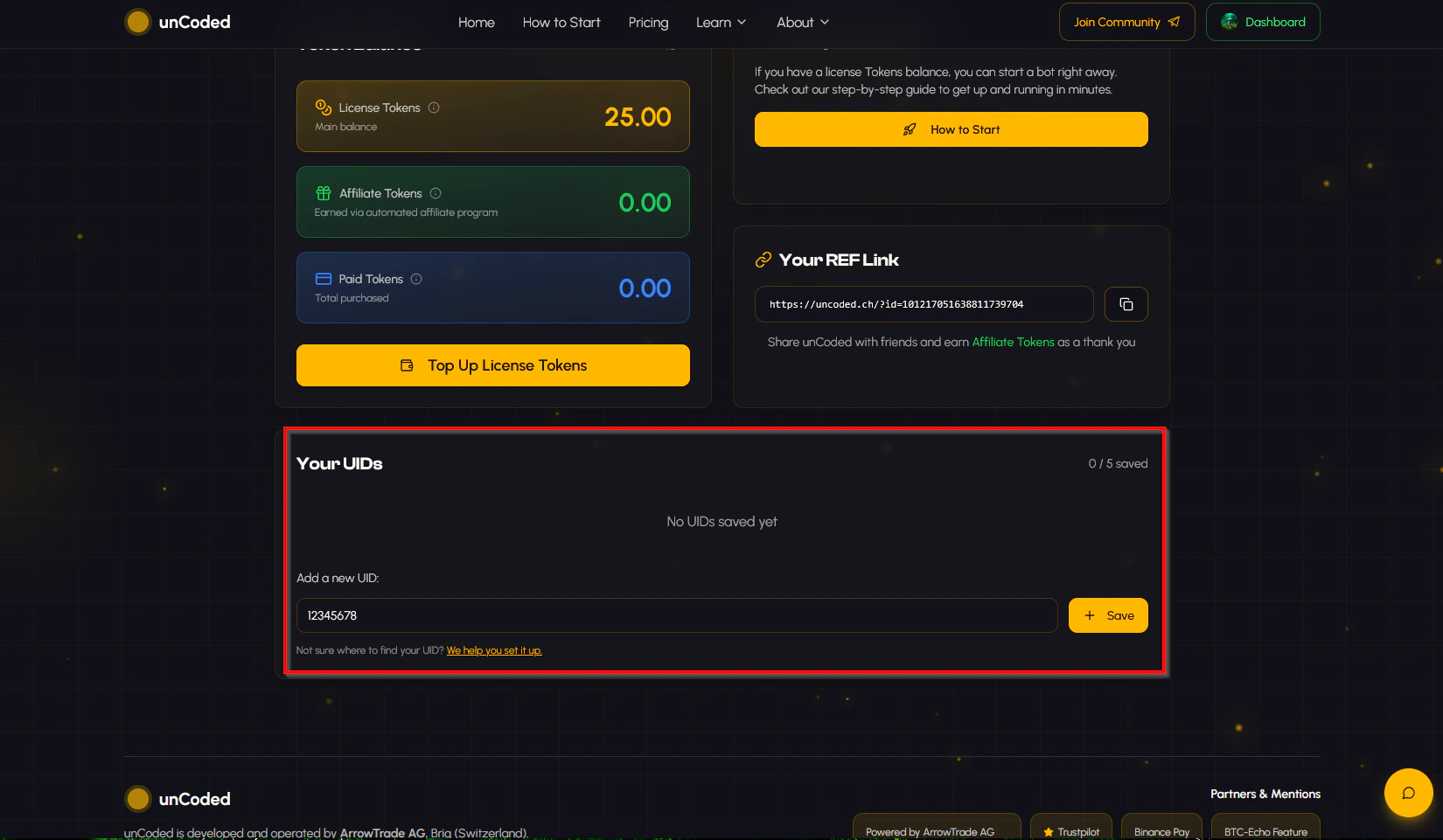 * Scroll down until you see the “**Your UIDs**” field and enter your UID or your API Key under “**Add a new UID:**”. Then click “**Save**”.
**Awesome! Lets setup your own unCoded Server now!**
In the next step, you need to set up your own server (don’t worry, it’s super easy).
* Scroll down until you see the “**Your UIDs**” field and enter your UID or your API Key under “**Add a new UID:**”. Then click “**Save**”.
**Awesome! Lets setup your own unCoded Server now!**
In the next step, you need to set up your own server (don’t worry, it’s super easy).