> ## Documentation Index
> Fetch the complete documentation index at: https://uncoded.ch/docs/llms.txt
> Use this file to discover all available pages before exploring further.
# Create your unCoded account
> Sign up at uncoded.ch with your Google account and link your Binance UID to activate your unCoded license.
This step links your Google account to your Binance UID so unCoded can verify your identity and apply your license.
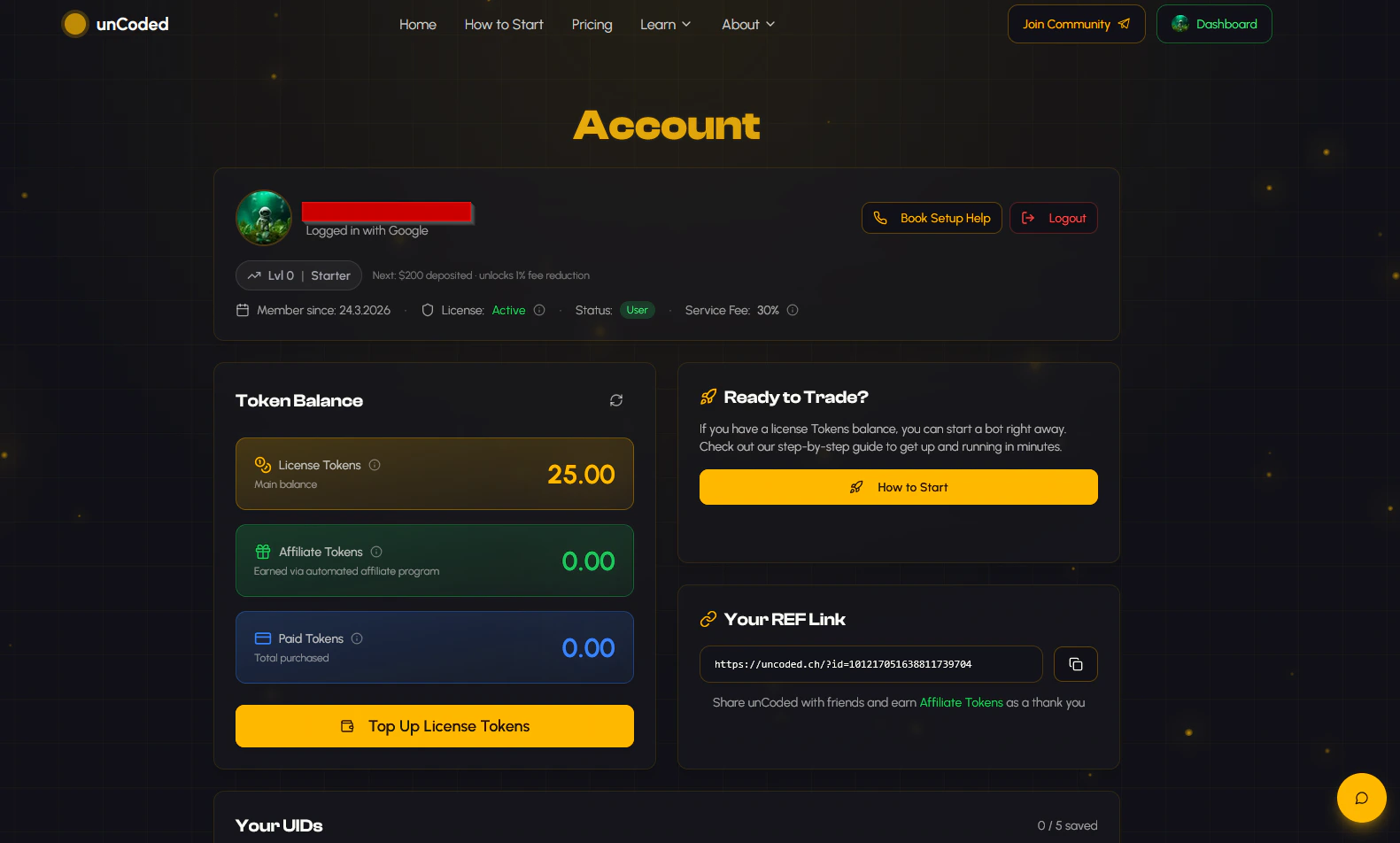
New accounts automatically receive free license credit to test unCoded. Check your balance under **Token Balance → License Tokens** after signing up.
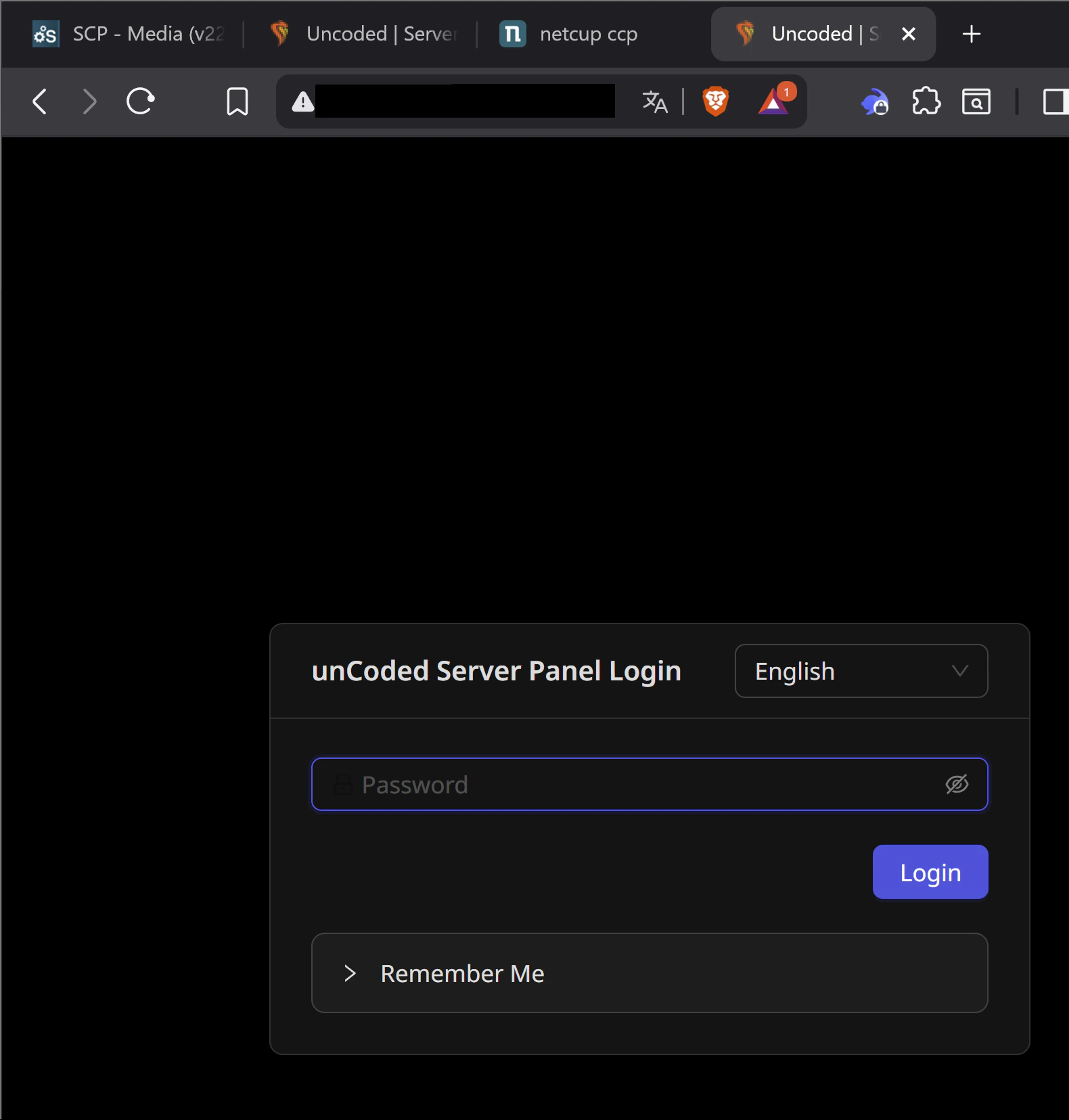
Go to [uncoded.ch](https://uncoded.ch) and click **Login / Sign Up**. Log in using your Google account.
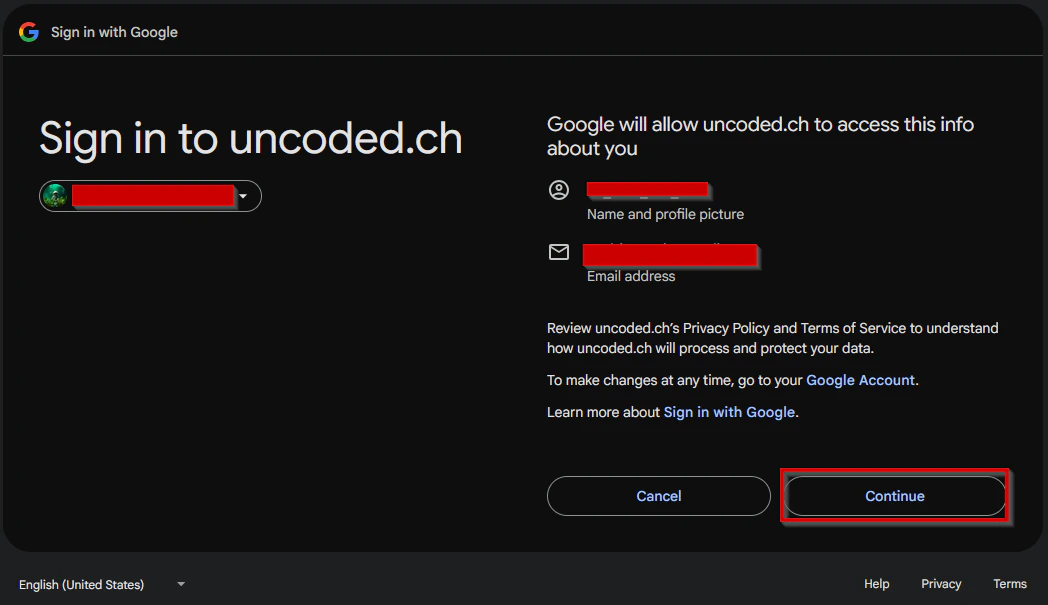
 A confirmation dialog will appear. Click **Continue** to authorize the login.
 You are now in the unCoded dashboard.
 Open your [Binance dashboard](https://www.binance.com/en/my/dashboard) in a new tab.
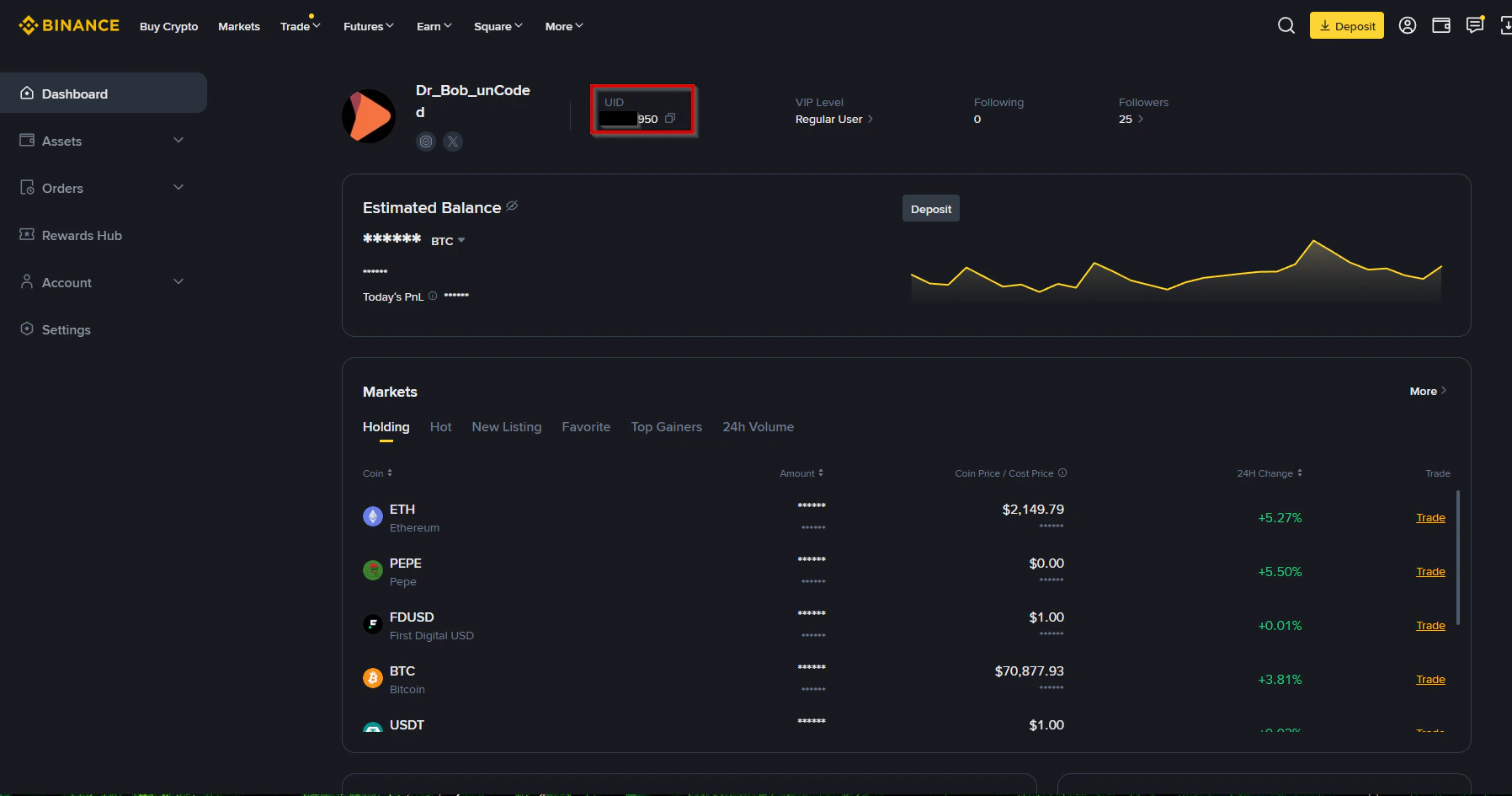 Your **UID** is displayed on the dashboard overview page. Copy it.
If you are using a subaccount for unCoded, make sure you copy the UID of that subaccount, not the main account.
Return to your [unCoded dashboard](https://www.uncoded.ch/account).
Scroll down to the **Your UIDs** section and click **Add a new UID**. Paste your Binance UID into the field and click **Save**.
Your **UID** is displayed on the dashboard overview page. Copy it.
If you are using a subaccount for unCoded, make sure you copy the UID of that subaccount, not the main account.
Return to your [unCoded dashboard](https://www.uncoded.ch/account).
Scroll down to the **Your UIDs** section and click **Add a new UID**. Paste your Binance UID into the field and click **Save**.
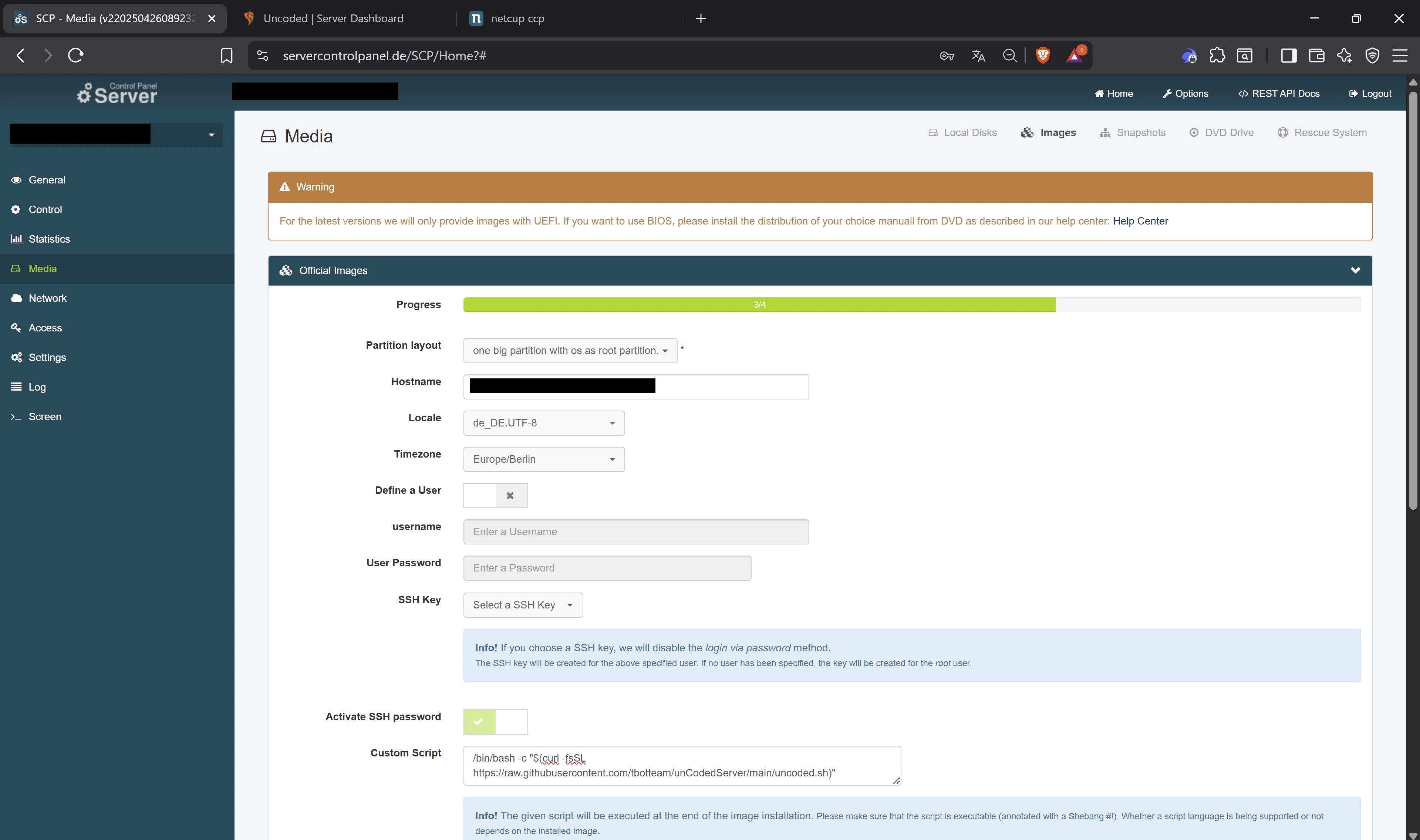 Once saved, your account is linked and your license credit is active.
Your unCoded account is now set up. The next step is to provision your server and deploy the bot. Continue to [Start your server](https://uncoded.ch/docs/getting-started/start-your-server).
Once saved, your account is linked and your license credit is active.
Your unCoded account is now set up. The next step is to provision your server and deploy the bot. Continue to [Start your server](https://uncoded.ch/docs/getting-started/start-your-server).