> ## Documentation Index
> Fetch the complete documentation index at: https://uncoded.ch/docs/llms.txt
> Use this file to discover all available pages before exploring further.
# Set Up Telegram for unCoded
To connect unCoded with Telegram, you first need to set up a communication channel so the bot can send updates directly via Telegram. This setup is optional.
All steps in this documentation assume you are using the **Telegram desktop or mobile client** (Windows, iOS, Android).
***
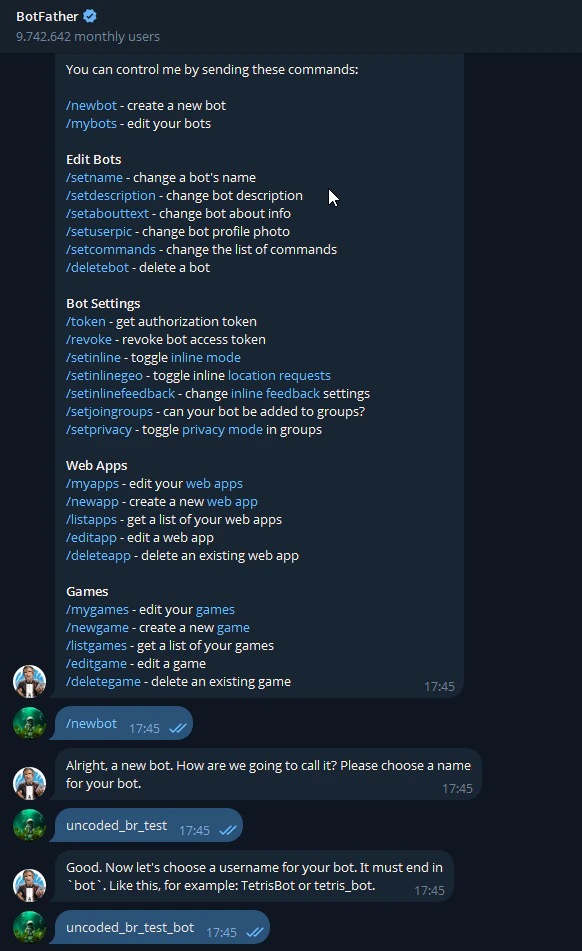
* Open a chat with @BotFather on Telegram.
* Send the command:
```text theme={null}
/newbot
```
* Follow the prompts to choose a **name** and **username** for your bot.
* Once complete, you will receive the **Bot Token**, which you will later add to your server configuration.
 ***
To link unCoded with Telegram, you need a dedicated group.
\*\*How to create the group:\*\*
* Open the Telegram **desktop or mobile client**.
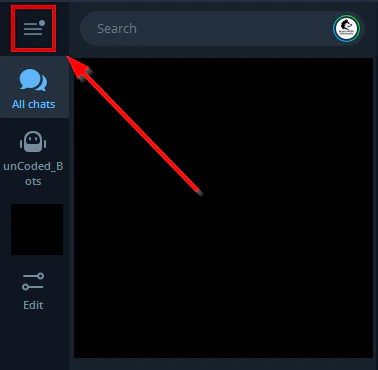
* Click on the **menu icon (three horizontal lines)** in the top left corner.
***
To link unCoded with Telegram, you need a dedicated group.
\*\*How to create the group:\*\*
* Open the Telegram **desktop or mobile client**.
* Click on the **menu icon (three horizontal lines)** in the top left corner.
 * Select **New Group**.
.png?fit=max&auto=format&n=BpnCzx8sZZN8B5wh&q=85&s=3be023952df6865373484bea016ac91e "Image (28)") * Give the group a **name** (e.g., `unCoded Trading`).
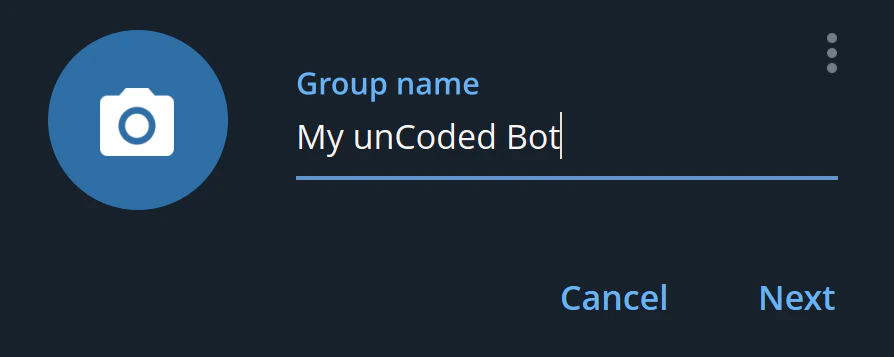
* Give the group a **name** (e.g., `unCoded Trading`).
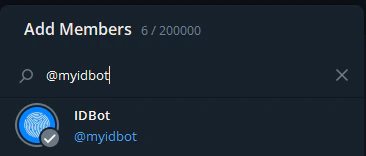
 * When asked to **add participants**, immediately add:
* Your newly created **Telegram bot** (from BotFather).
* When asked to **add participants**, immediately add:
* Your newly created **Telegram bot** (from BotFather).
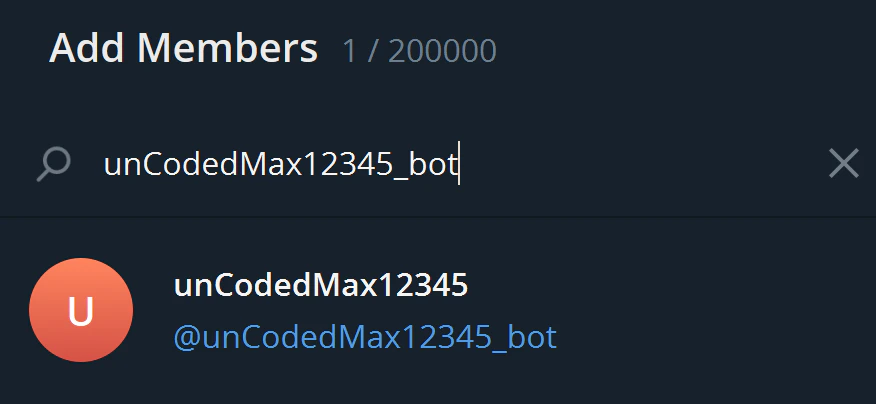 * The helper bot **@myidbot**.
You will also be a member of the group automatically.
* The helper bot **@myidbot**.
You will also be a member of the group automatically.
 * Save the setting.
Depending on the Telegram version you are using (Windows, web, mobile, etc.), this process may vary. If you need help, feel free to contact our support on Telegram.
For the bot to function properly in the group, it must be set as an **Administrator**.
**Steps:**
* Open your new group.
* Click on the **three dots (⋮)** in the top right corner and select **Manage Group**.
* Save the setting.
Depending on the Telegram version you are using (Windows, web, mobile, etc.), this process may vary. If you need help, feel free to contact our support on Telegram.
For the bot to function properly in the group, it must be set as an **Administrator**.
**Steps:**
* Open your new group.
* Click on the **three dots (⋮)** in the top right corner and select **Manage Group**.
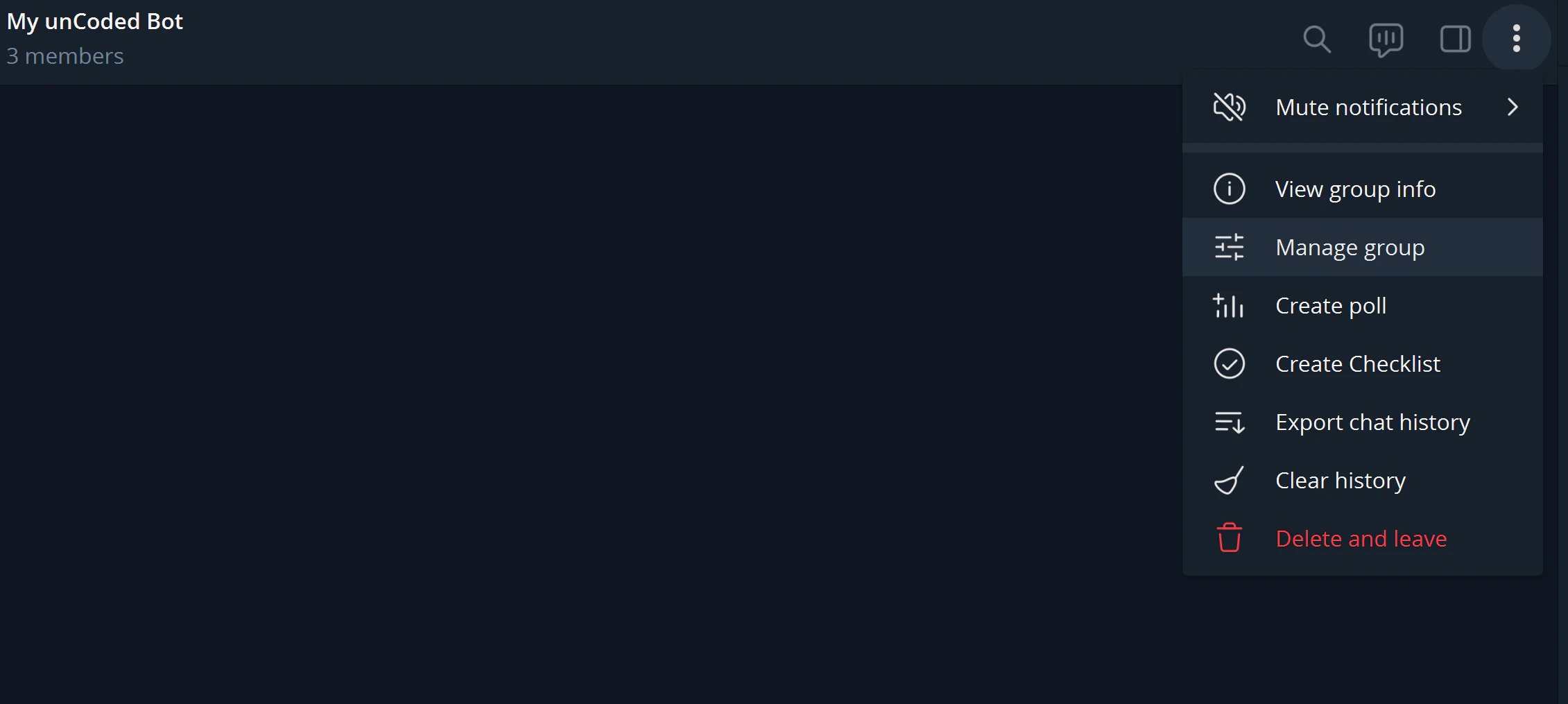 * Go to **Administrators**.
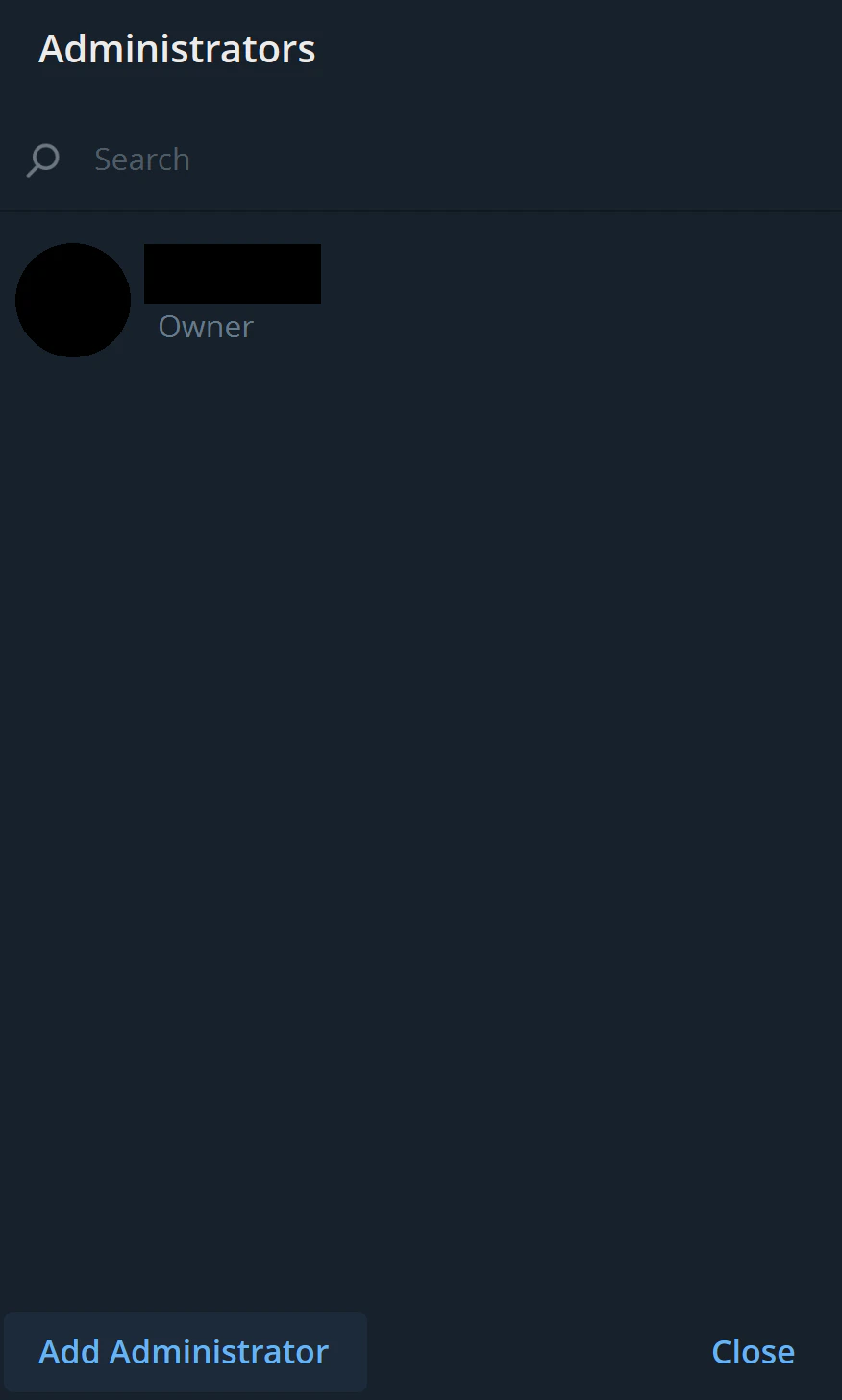 * Click **Add Administrator.**
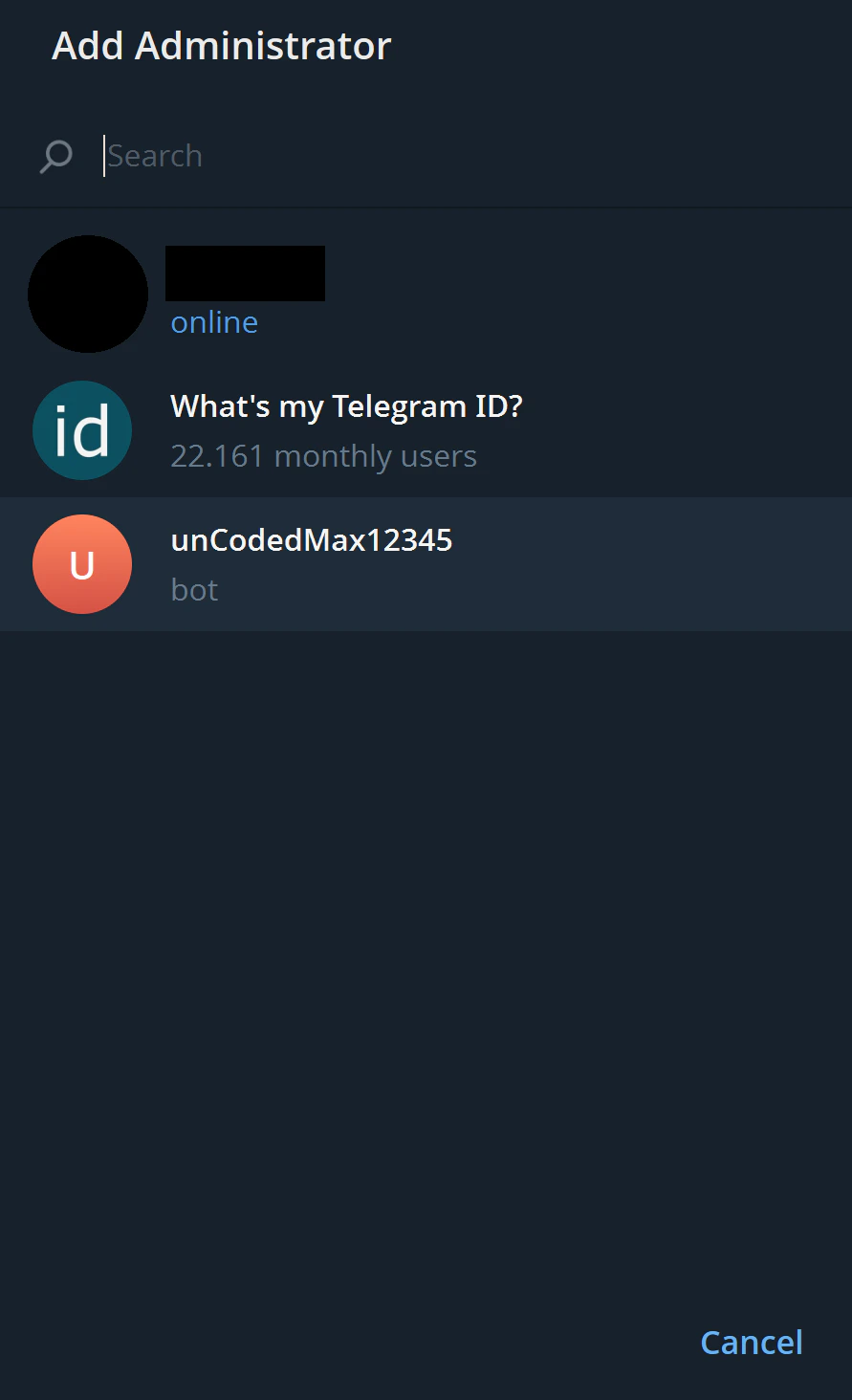 * Select your **unCoded Bot** (Or Right-Click it).
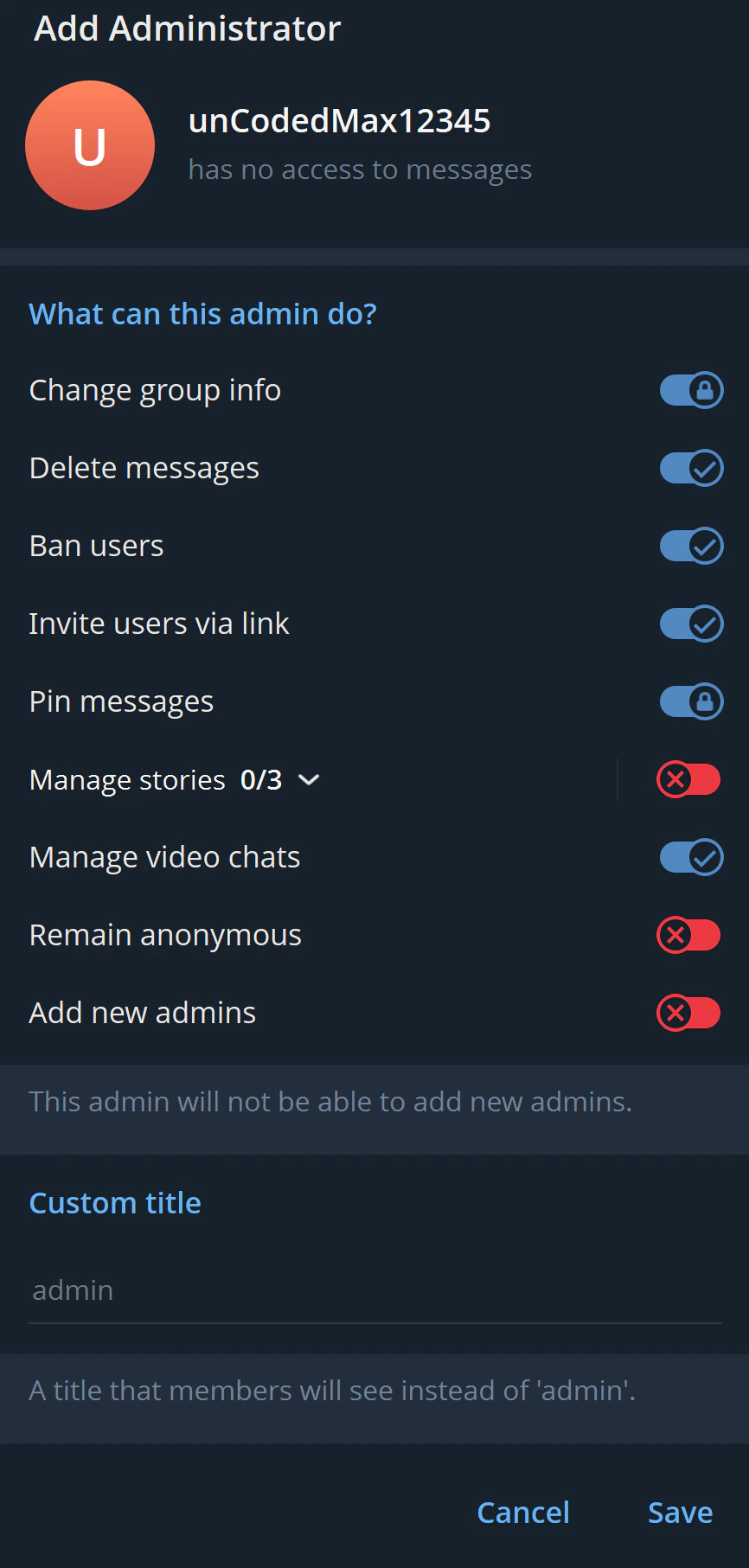 * Confirm with **Save**.
💡 Normal administrator rights are sufficient. You don’t need to enable or adjust any special permissions.
In the group chat, send:
```text theme={null}
/getgroupid@myidbot
```
* Confirm with **Save**.
💡 Normal administrator rights are sufficient. You don’t need to enable or adjust any special permissions.
In the group chat, send:
```text theme={null}
/getgroupid@myidbot
```
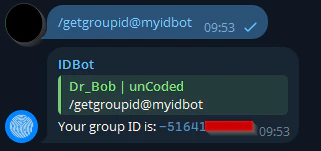 @myidbot will reply:
1. **Group ID** (e.g., `-100111111111`)
To get your own user ID, send `/getid` in a private chat with the bot. **Lets move on with the next step!**
@myidbot will reply:
1. **Group ID** (e.g., `-100111111111`)
To get your own user ID, send `/getid` in a private chat with the bot. **Lets move on with the next step!**