
🔧 RequirementsBefore you begin, make sure that:
- You have an active Server.
- See recomandations in System Requirements.
- You already have your Exchange API keys and Telegram bot credentials (Optional) If you don’t have a server with Netcup yet, you can save €5 when creating your server by using our coupon! You can find the coupon as well as instructions under System Requirements.
⚙️ Prepare the Netcup Server
- Log in to your Netcup Server Control Panel (SCP).
- Select your Server.
- Click Media:
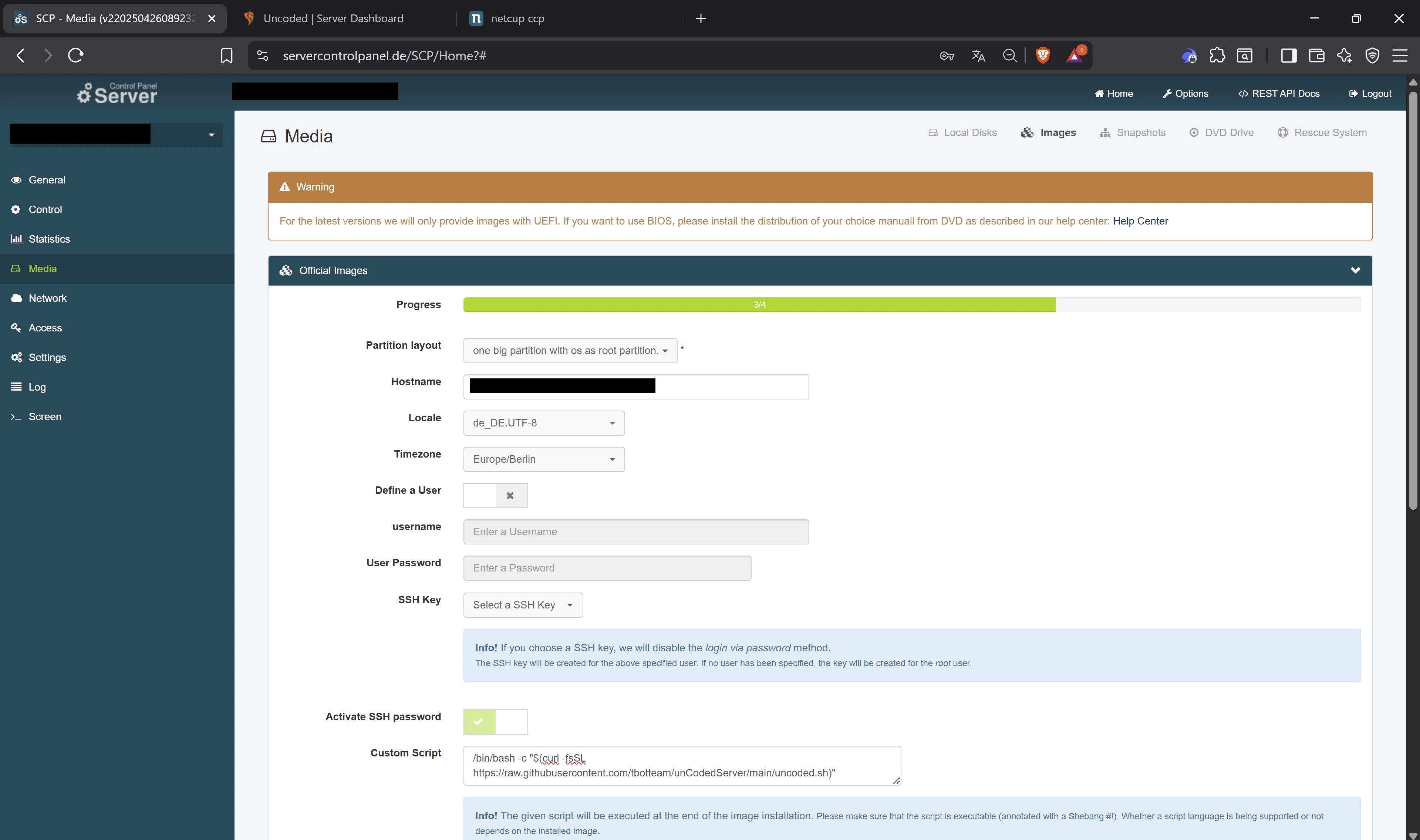
- Click Images and choose Ubuntu cloudimg 24.04.3 UEFI (Or the latest version available).
- When prompted to select the installation method, choose Minimal.
- In the next dialog, set the following options:
- Partition Layout: One Big Partition
- Locale: German or English (your choice)
- Timezone: set your local time zone
- Scroll to Custom Script and paste this command:
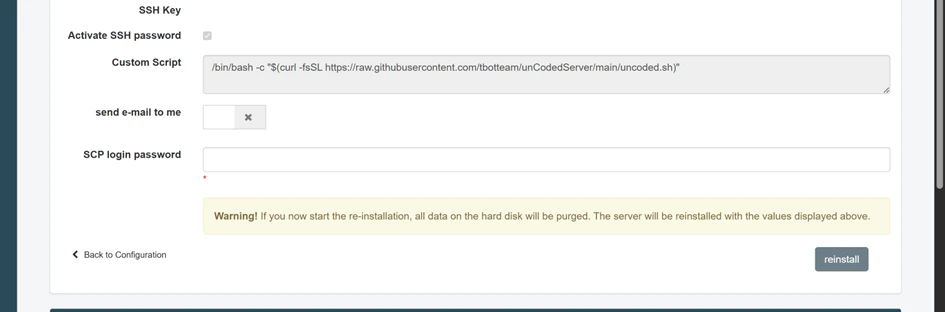
- Click Next, then confirm by entering your SCP password again and confirm with reinstall.
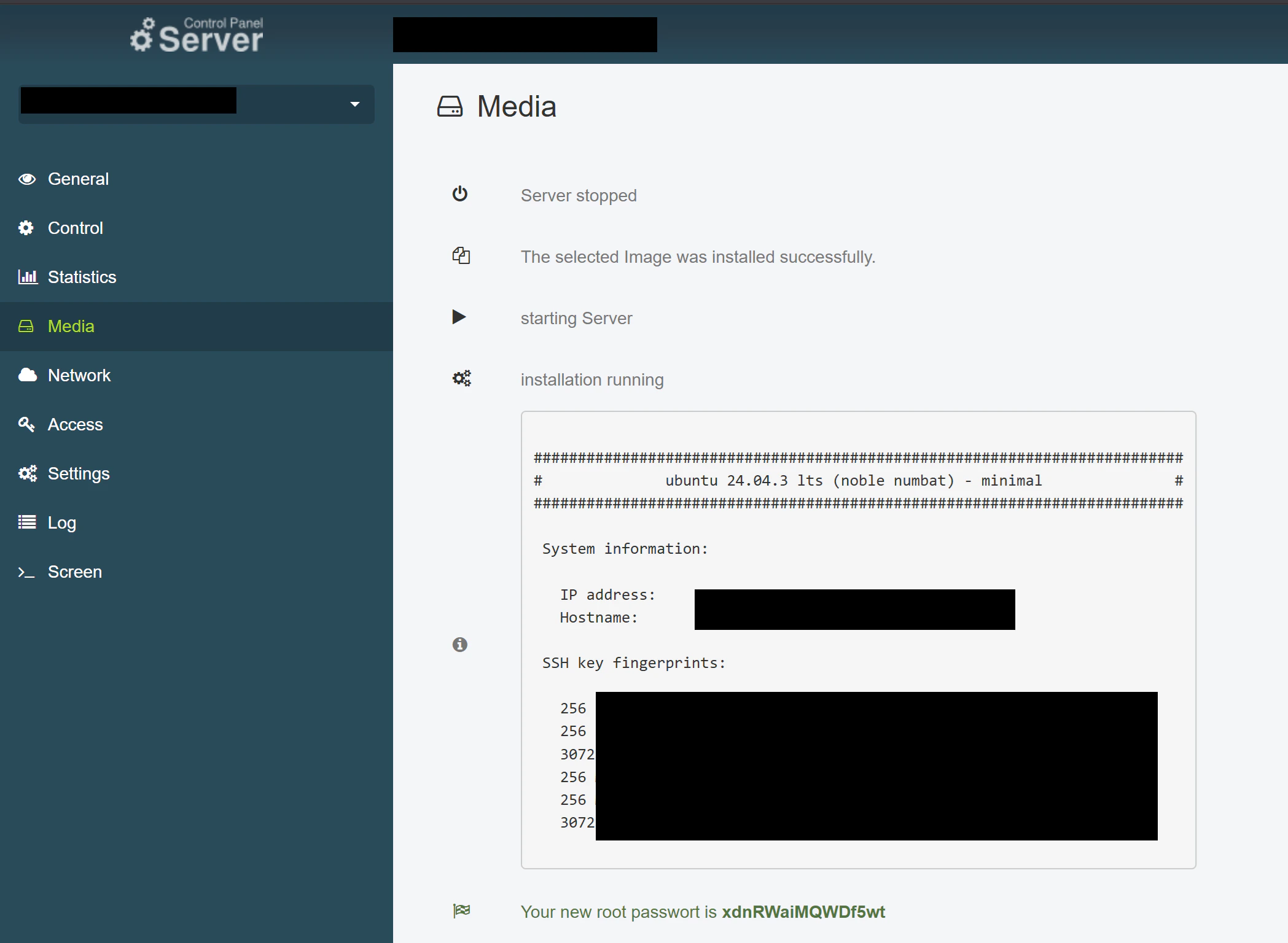
- The provisioning will start. The script runs automatically and starts the unCoded setup. After the installation is done copy the IP address and click on starting Server. Wait 5 minutes before moving to the next step.
⚙️ Prepare the Netcup Server
- Log in to your Netcup Server Control Panel (SCP).
- Select your Server.
- Click Media:
- Click Images and choose Ubuntu cloudimg 24.04.3 UEFI (Or the latest version available).
- When prompted to select the installation method, choose Minimal.
- In the next dialog, set the following options:
- Partition Layout: One Big Partition
- Locale: German or English (your choice)
- Timezone: set your local time zone
- Scroll to Custom Script and paste this command:
- Click Next, then confirm by entering your SCP password again and confirm with reinstall.
- The provisioning will start. The script runs automatically and starts the unCoded setup. After the installation is done copy the IP address and click on starting Server. Wait 5 minutes before moving to the next step.
🌐 Access the unCoded Server Panel (Caprover)
The following sections are only required if you are hosting a server with Netcup. Zeabur and Railway do not require such an interface.
- Open your browser and enter your server’s IP address followed by
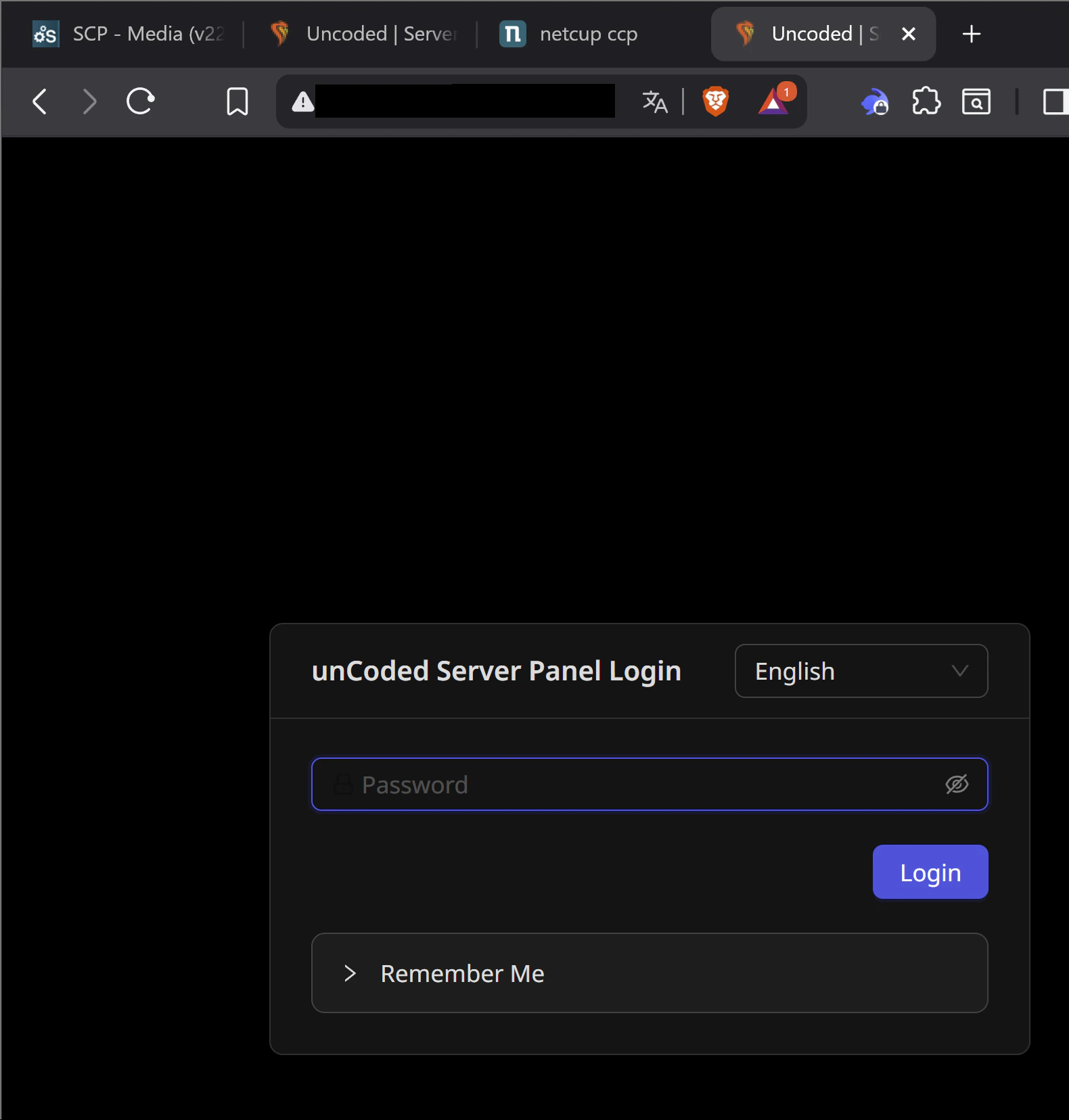
:3000(for example,http://89.xxx.xxx.xxx:3000). - You’ll see the unCoded Server Panel Login screen.
- You can switch the interface language if desired.
- Log in using the following standard password: captain42.
⚙️ Install the unCoded App
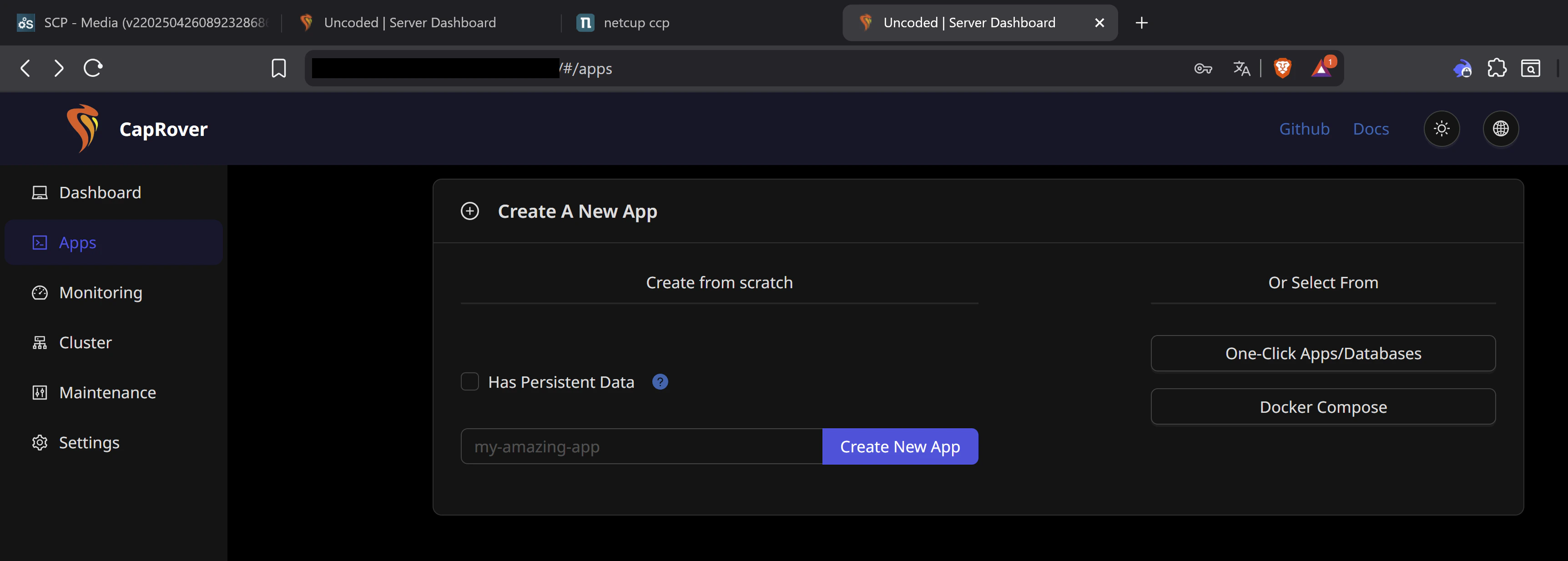
- In the left-hand menu, click Apps.
- Choose One-Click Apps / Databases.
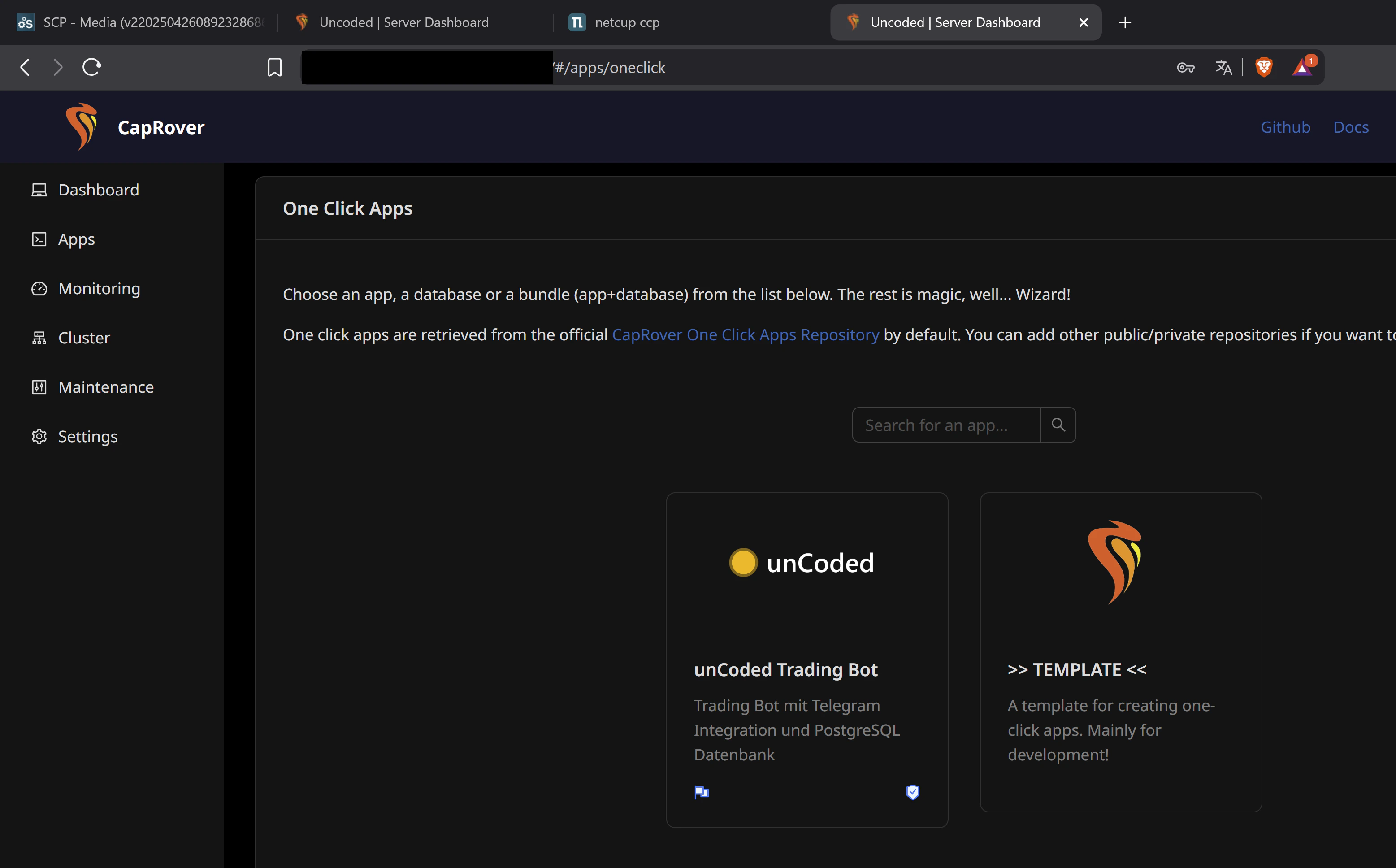
- From the list, select unCoded Trading Bot.
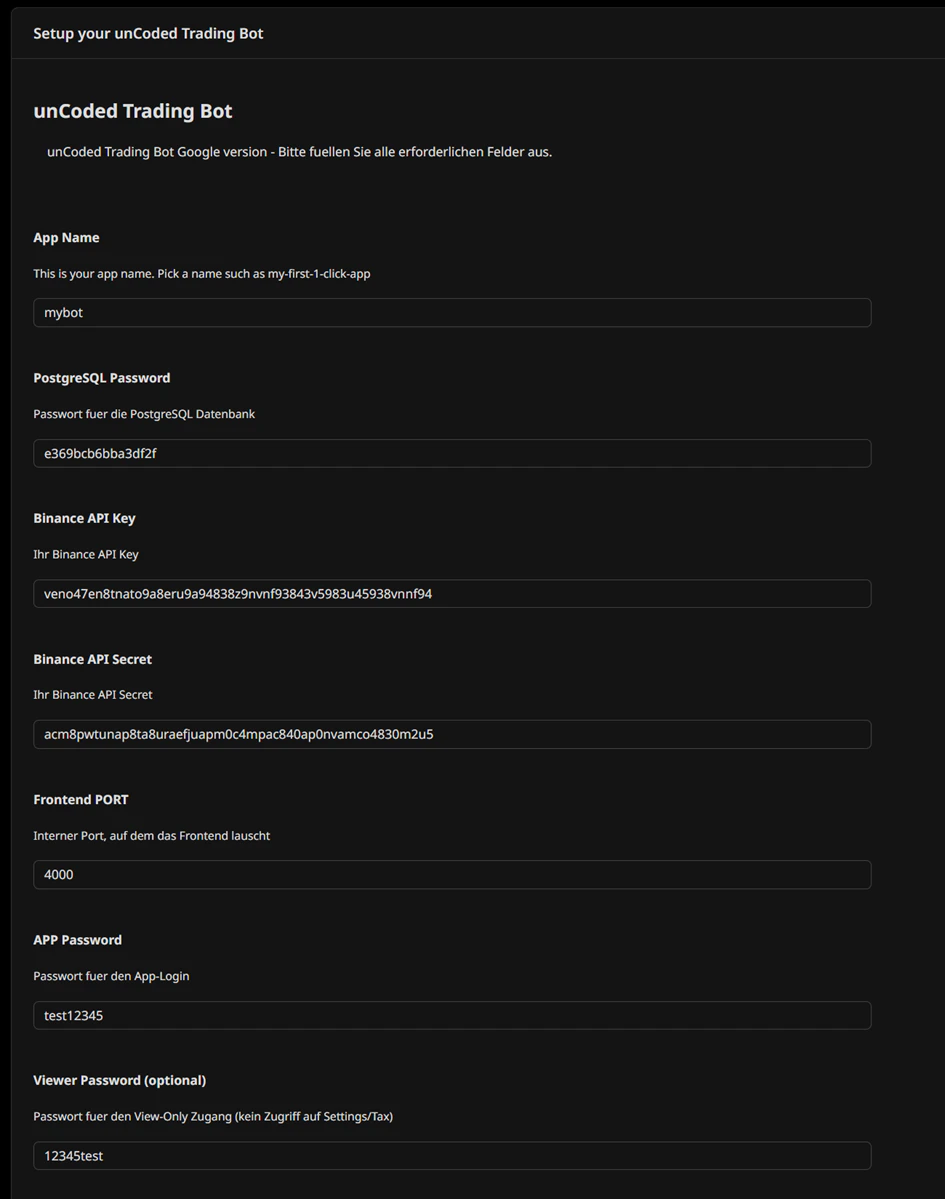
- Fill in all required fields to prepare your deployment:
- App Name: Pick a unique name for your application (e.g.,
mybot). - PostgreSQL Password: This field is automatically pre-filled by the system for your convenience, but you can change it to any secure password of your choice.
- Binance API Key & Secret: Enter your personal API credentials from your Binance account.
- Frontend PORT: The external port the dashboard listens on (default:
4000). - App Password: The password used for your personal login to the bot dashboard.
- Viewer Password (optional): A password for “View-Only” access (no access to Settings or Tax data).
- Telegram Configuration (Optional): Telegram integration is optional. If you wish to receive real-time notifications and signals, please follow our separate guide.
- App Name: Pick a unique name for your application (e.g.,
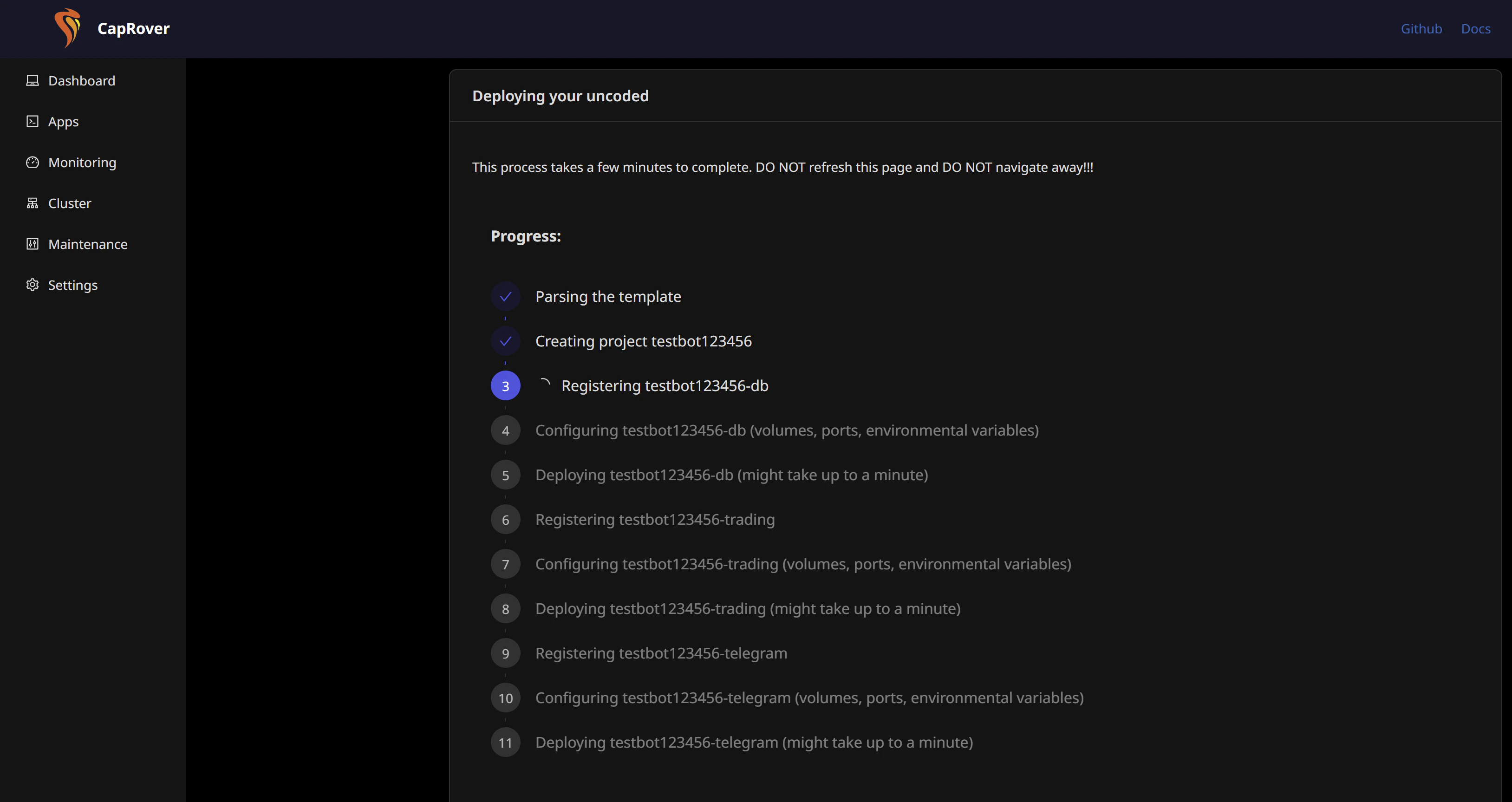
- Once all data is entered, click Deploy.
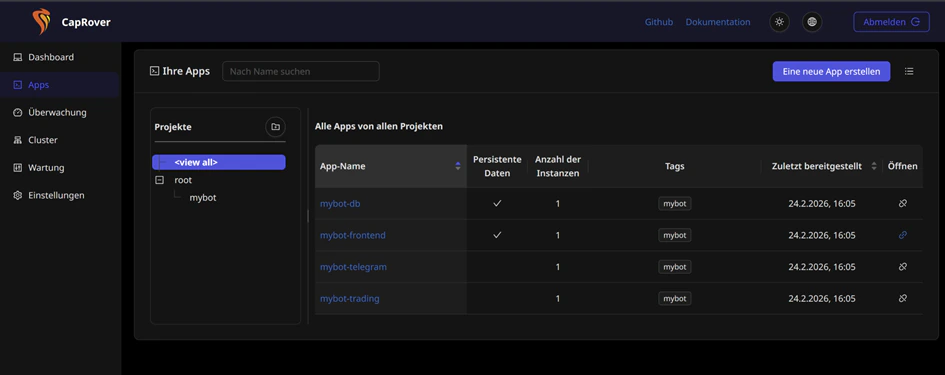
🔒 Change Your Password
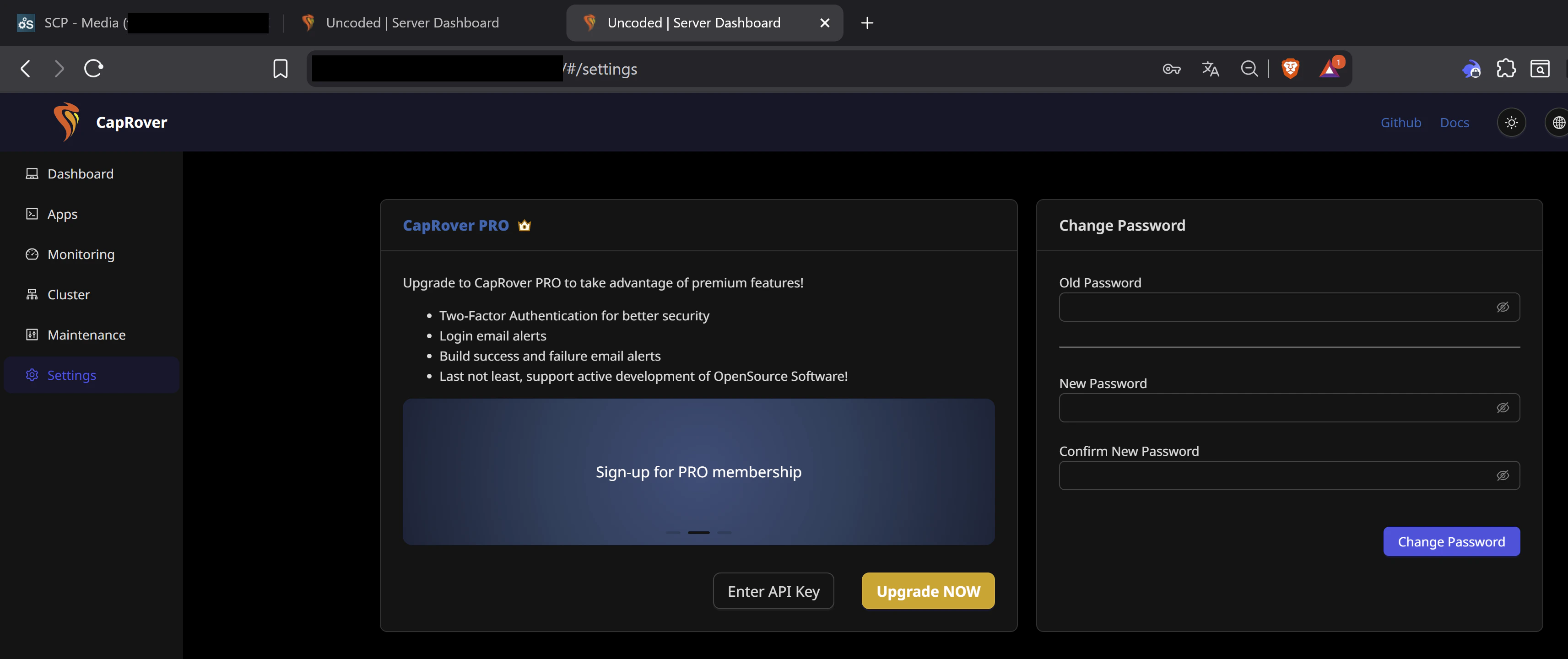
Before you start using the bot, it’s strongly recommended to change your default server panel password.
- Go to Settings in the left-hand menu.
- Under Change Password, enter your current password and set a new, secure one.
- Click Change Password to confirm.
Next Steps: You’re almost done!After the deployment is complete, your bot instance is ready. In the next section, we will walk you through the basic configuration and show you how to start the bot for the first time to begin trading.