
All steps in this documentation assume you are using the Telegram desktop or mobile client (Windows, iOS, Android).
Create a new Bot via BotFather
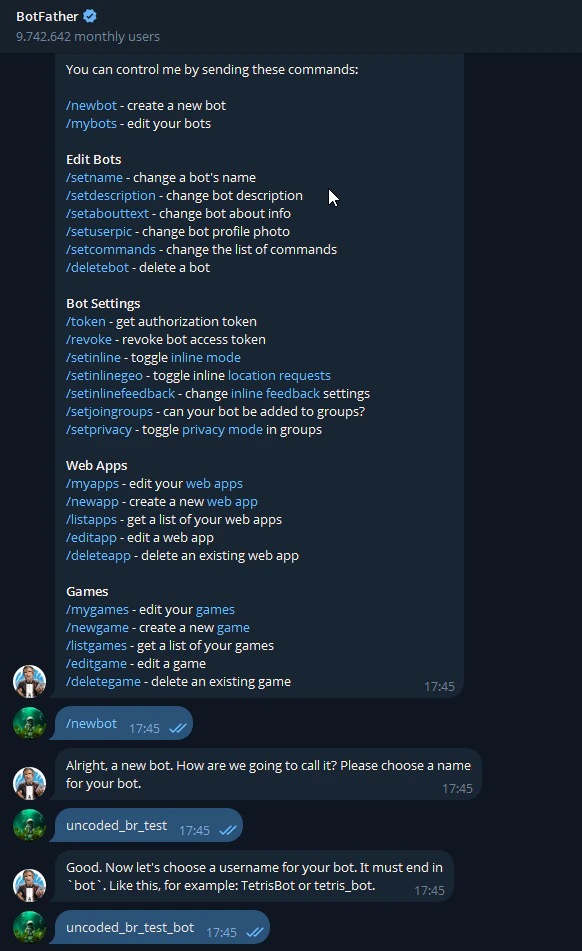
- Open a chat with @BotFather on Telegram.
- Send the command:
- Follow the prompts to choose a name and username for your bot.
- Once complete, you will receive the Bot Token, which you will later add to your server configuration.
Create a Group and Add the Bot
To link unCoded with Telegram, you need a dedicated group.**How to create the group:**.png?fit=max&auto=format&n=BpnCzx8sZZN8B5wh&q=85&s=3be023952df6865373484bea016ac91e "Image (28)")
- Open the Telegram desktop or mobile client.
- Click on the menu icon (three horizontal lines) in the top left corner.
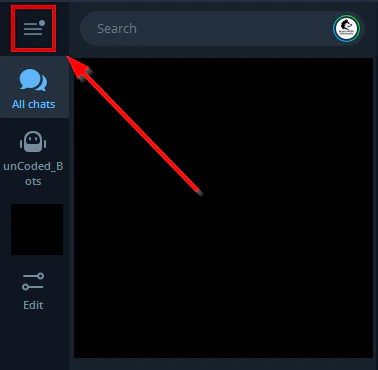
- Select New Group.
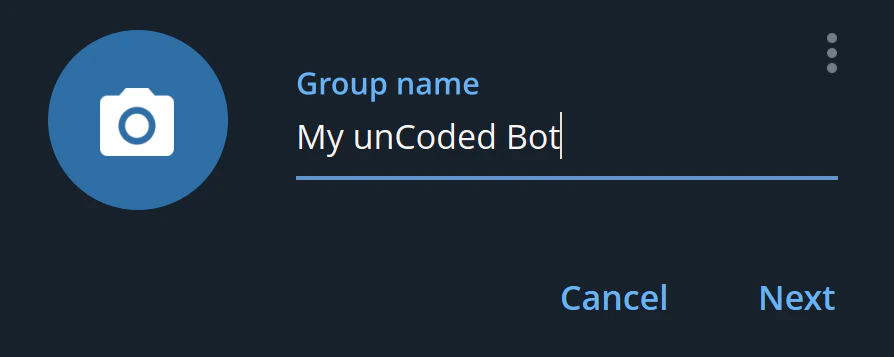
- Give the group a name (e.g.,
unCoded Trading).
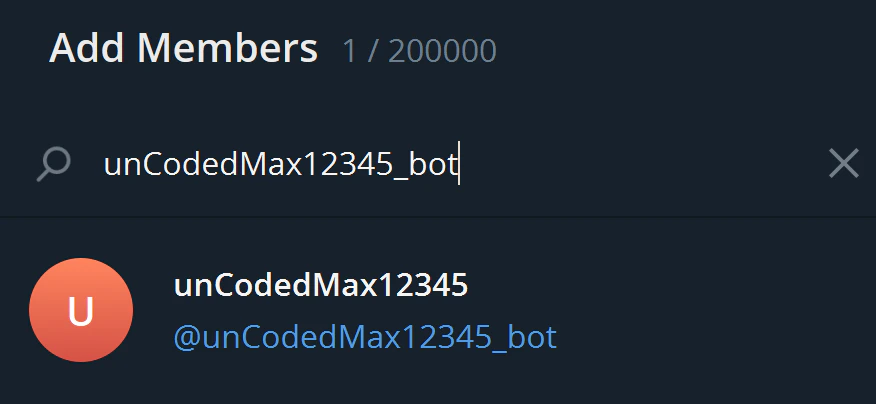
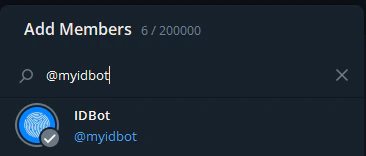
- When asked to add participants, immediately add:
- Your newly created Telegram bot (from BotFather).
- The helper bot @myidbot.
You will also be a member of the group automatically.
- Save the setting.
👷 Give Your Bot Administrator Rights
Depending on the Telegram version you are using (Windows, web, mobile, etc.), this process may vary. If you need help, feel free to contact our support on Telegram.
- Open your new group.
- Click on the three dots (⋮) in the top right corner and select Manage Group.
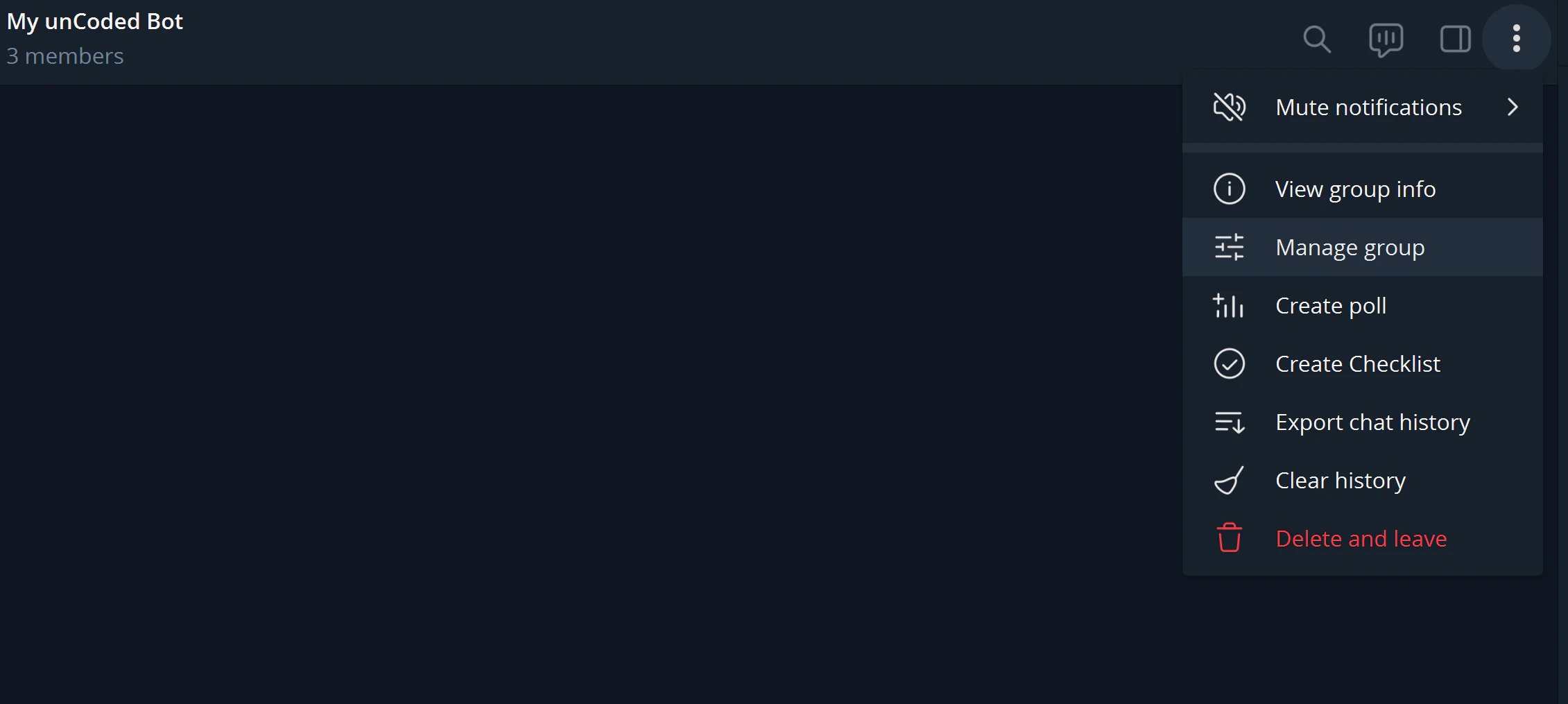
- Go to Administrators.
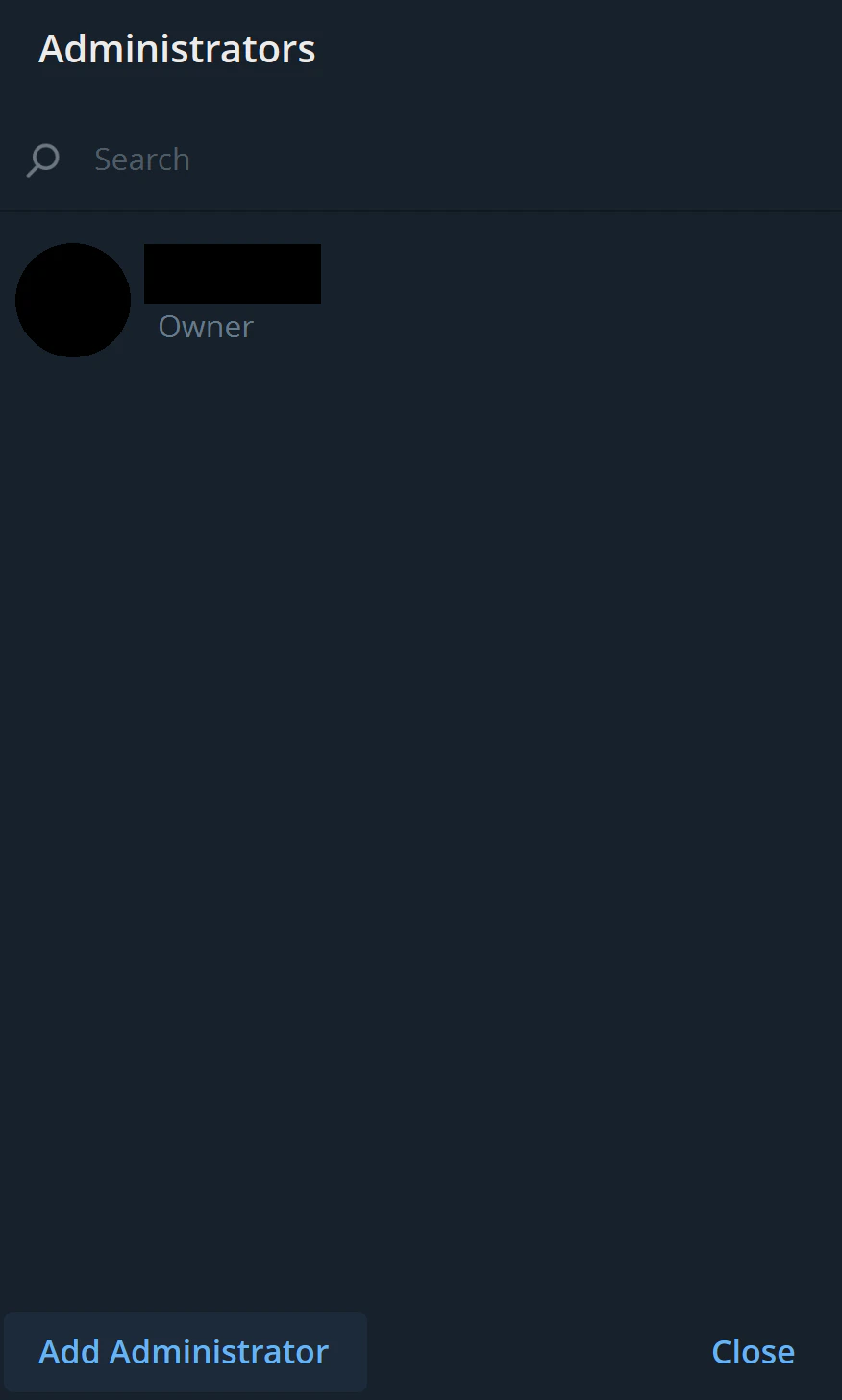
- Click Add Administrator.
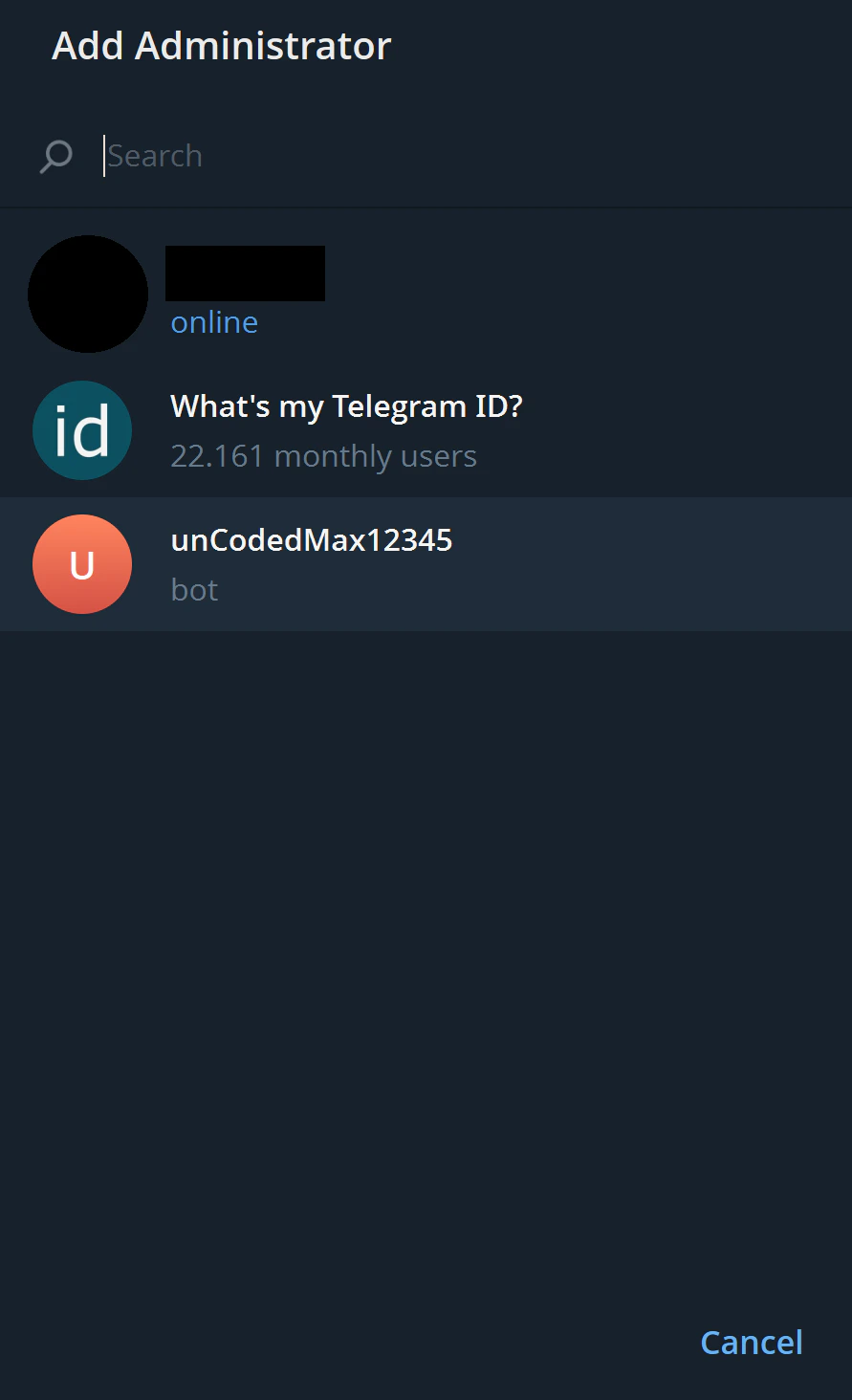
- Select your unCoded Bot (Or Right-Click it).
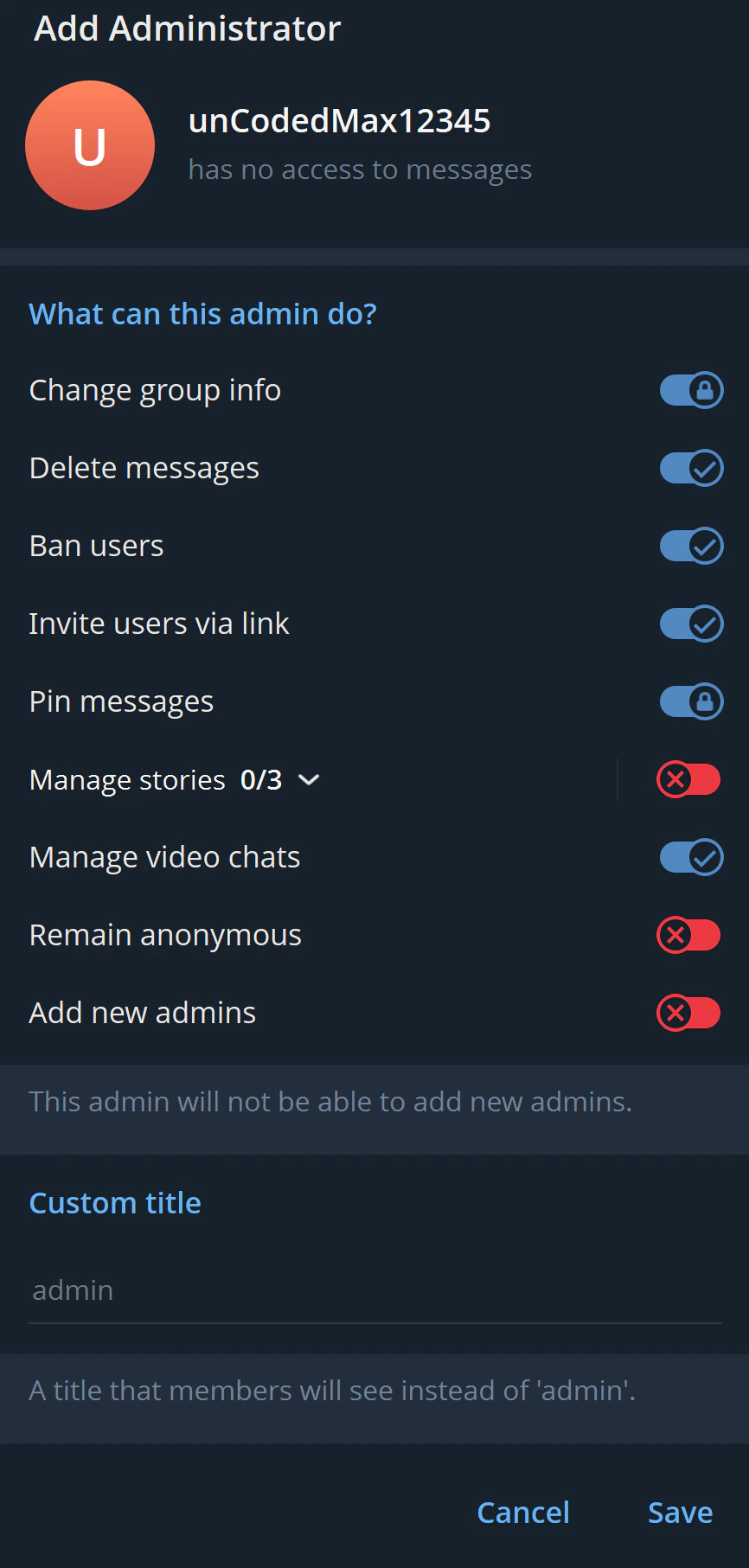
- Confirm with Save.
💡 Normal administrator rights are sufficient. You don’t need to enable or adjust any special permissions.
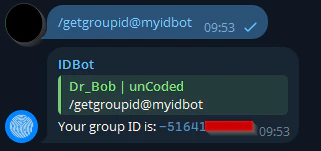
To get your own user ID, send
/getid in a private chat with the bot. Lets move on with the next step!