
This video is in German by default. However, you can enable YouTube’s automatic translation.
🌐 Access & Login
Open your web browser and navigate to your dashboard using your server’s IP and the port you defined during installation (default:
4000):http://YOUR-SERVER-IP:4000Move on with Step 2 if you’re using Netcup / Railway
- Login: Use the App Password you created during the initial deployment.
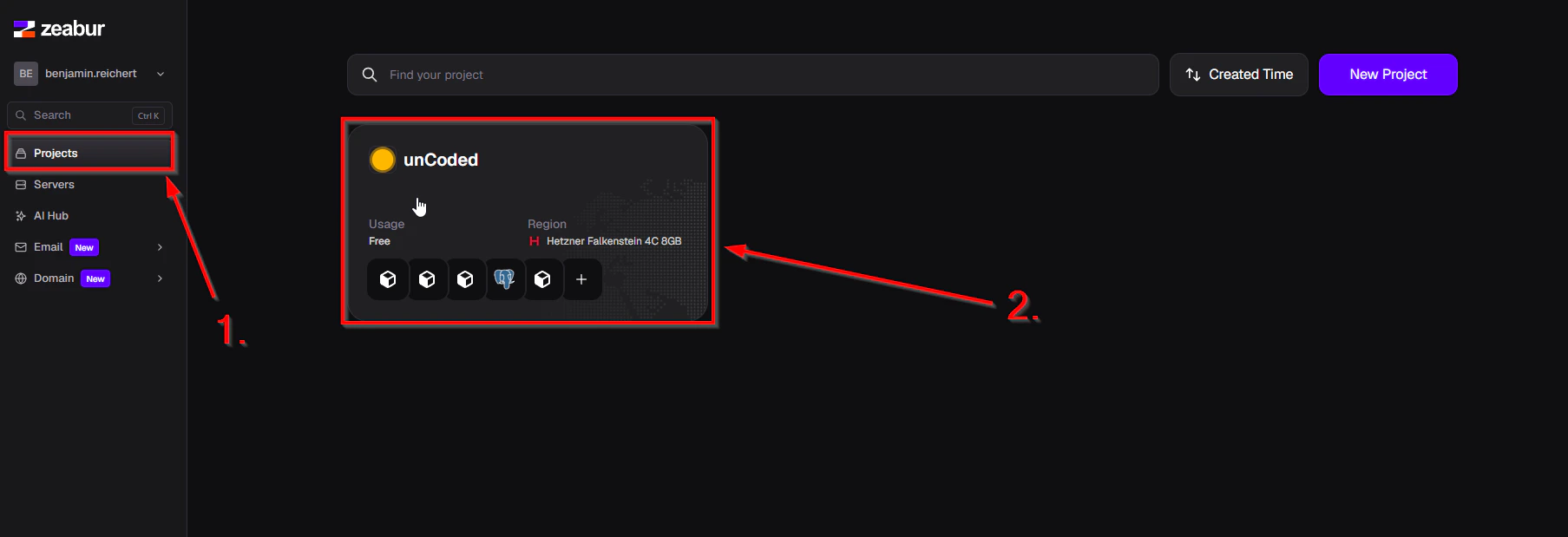
- Go to https://zeabur.com/projects and open your unCoded-Project.
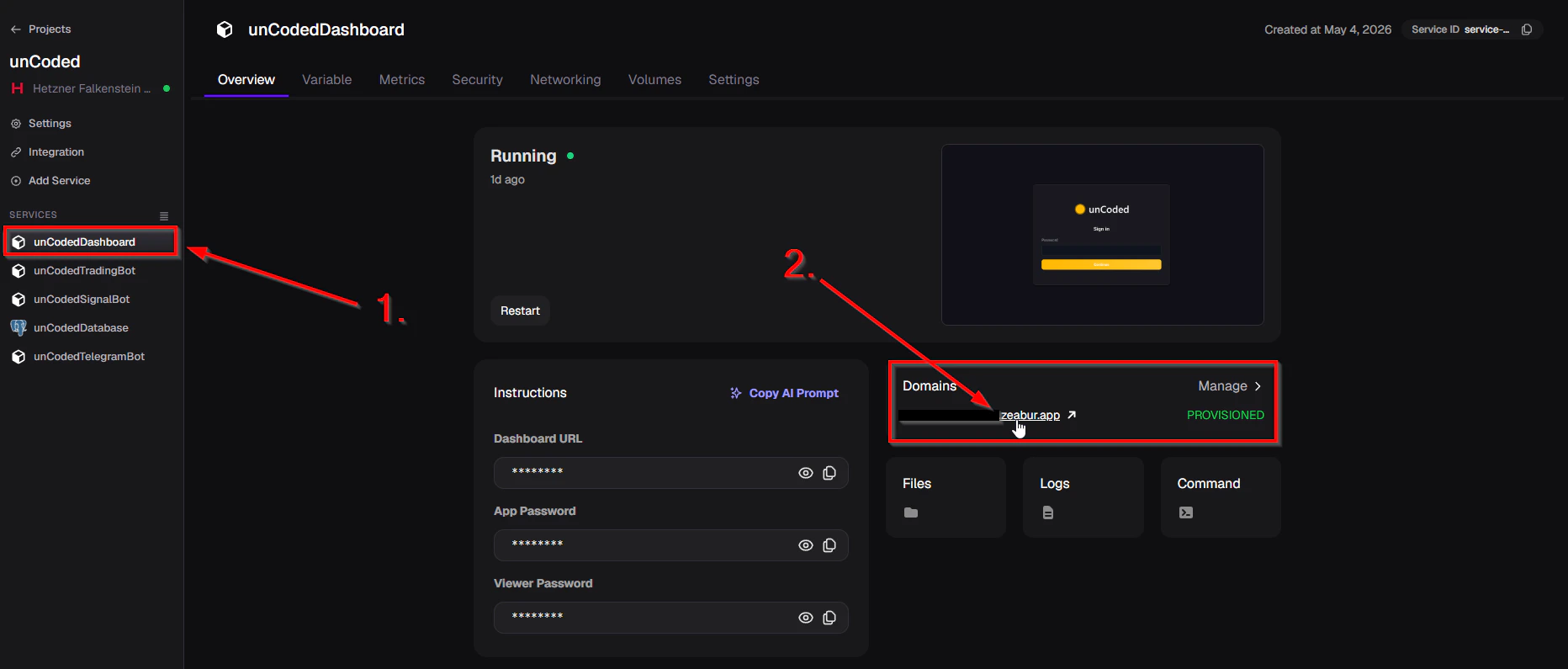
- Click on “unCodedDashboard” and then, under “Domains,” click the link you configured (
YOUR-DOMAIN.zeabur.app).
🧙♂️ The Setup Wizard
The system will guide you through a 4-step wizard to configure your first bot: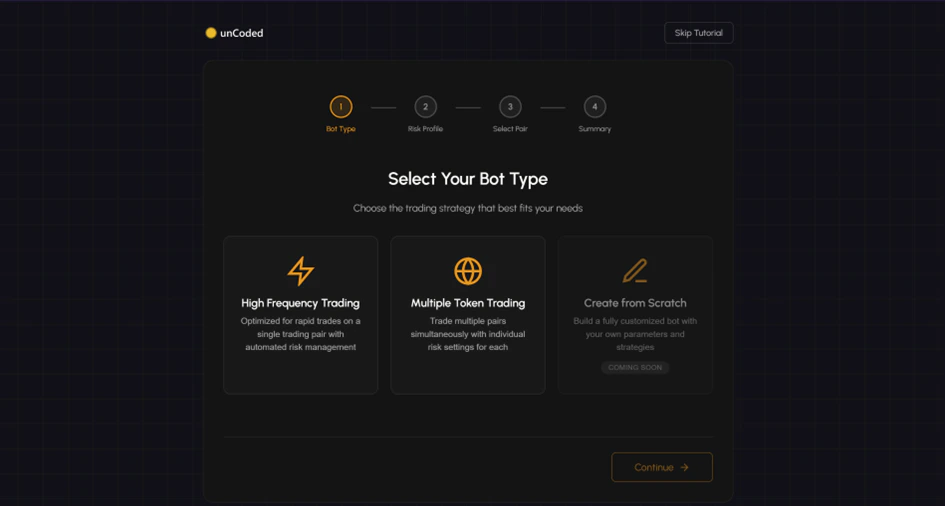
- Step 1: Select Bot Type
- High Frequency Trading: Best for rapid trades on a single pair with automated risk management.
- Multiple Token Trading: Allows trading multiple pairs simultaneously with individual risk settings.
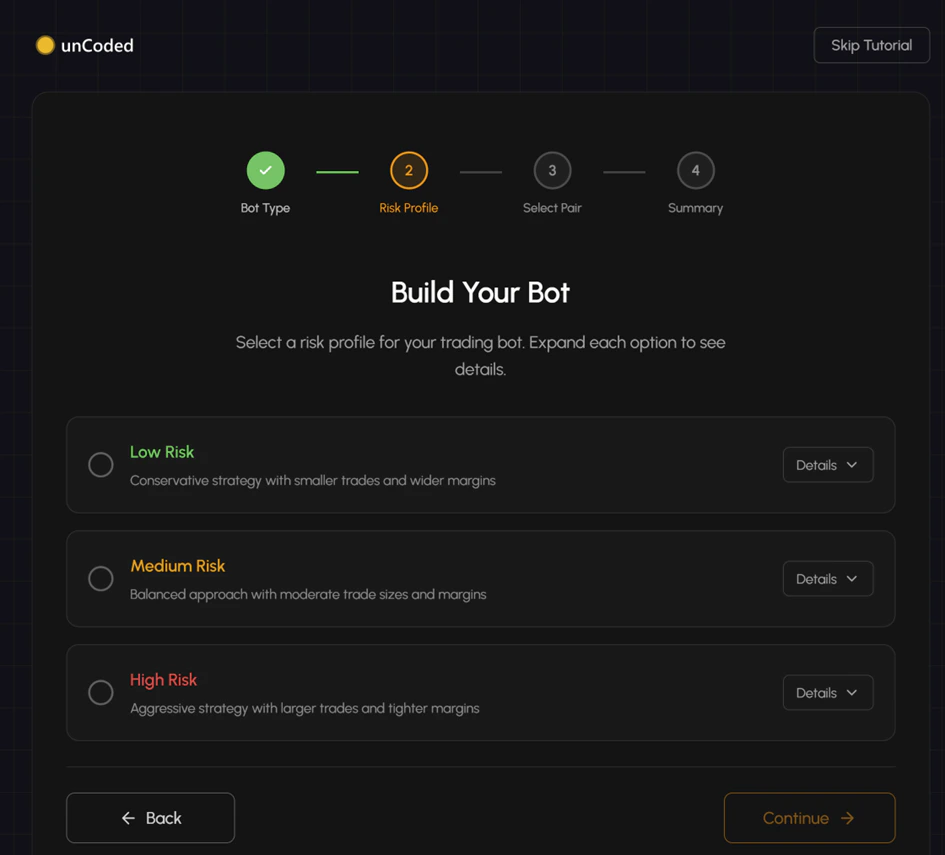
- Step 2: Risk Profile
- Choose between Low, Medium, or High Risk. These presets adjust your trade sizes and margins automatically.
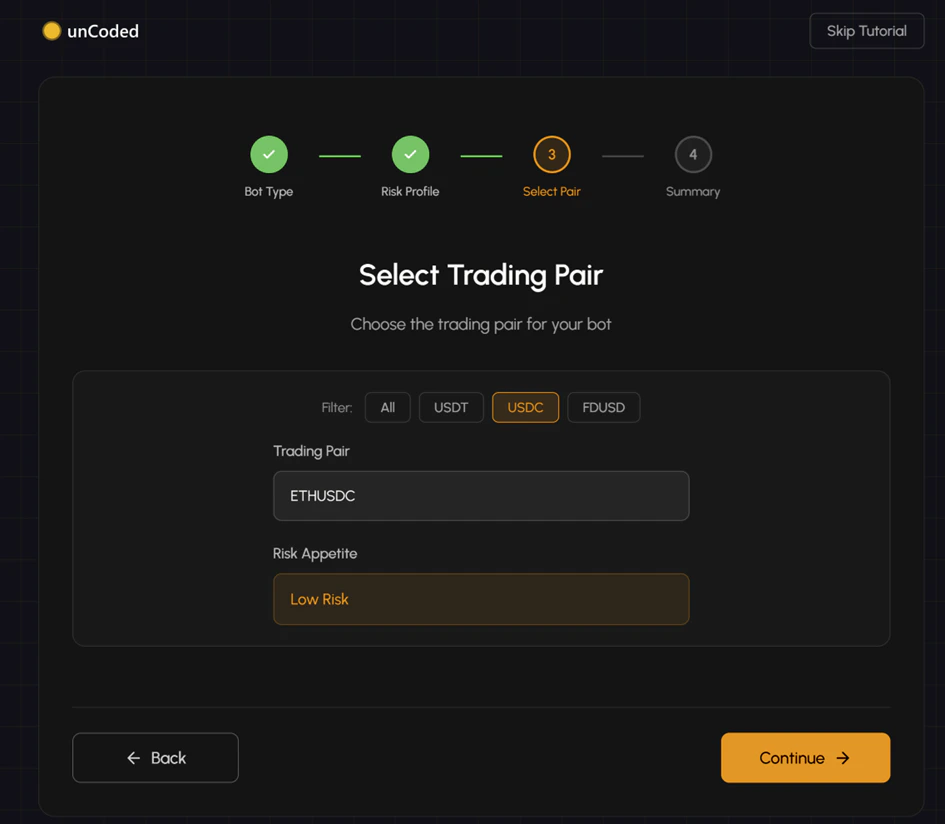
- Step 3: Select Trading Pair
- Pick your desired pair (e.g., ETHUSDC). You can filter the list by base currencies like USDT, USDC, or FDUSD.
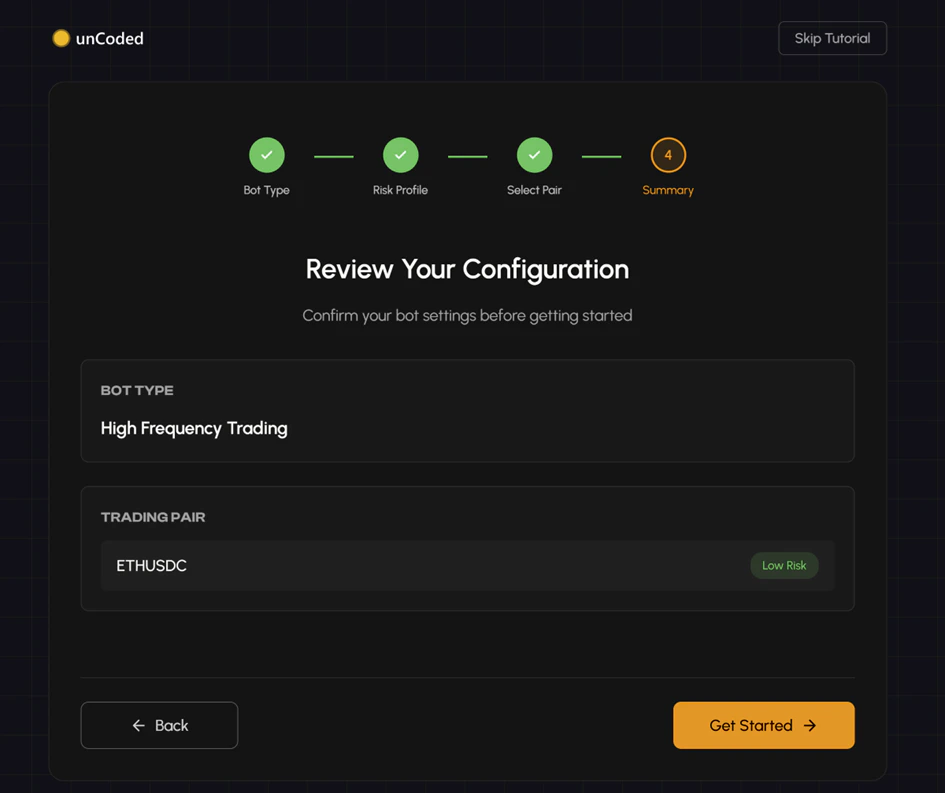
- Step 4: Summary
- Review your configuration and click “Get Started” to move to the final activation.
📝 Licensing & Activation
💡To finalize the setup, you must link your account and accept the terms and conditions.
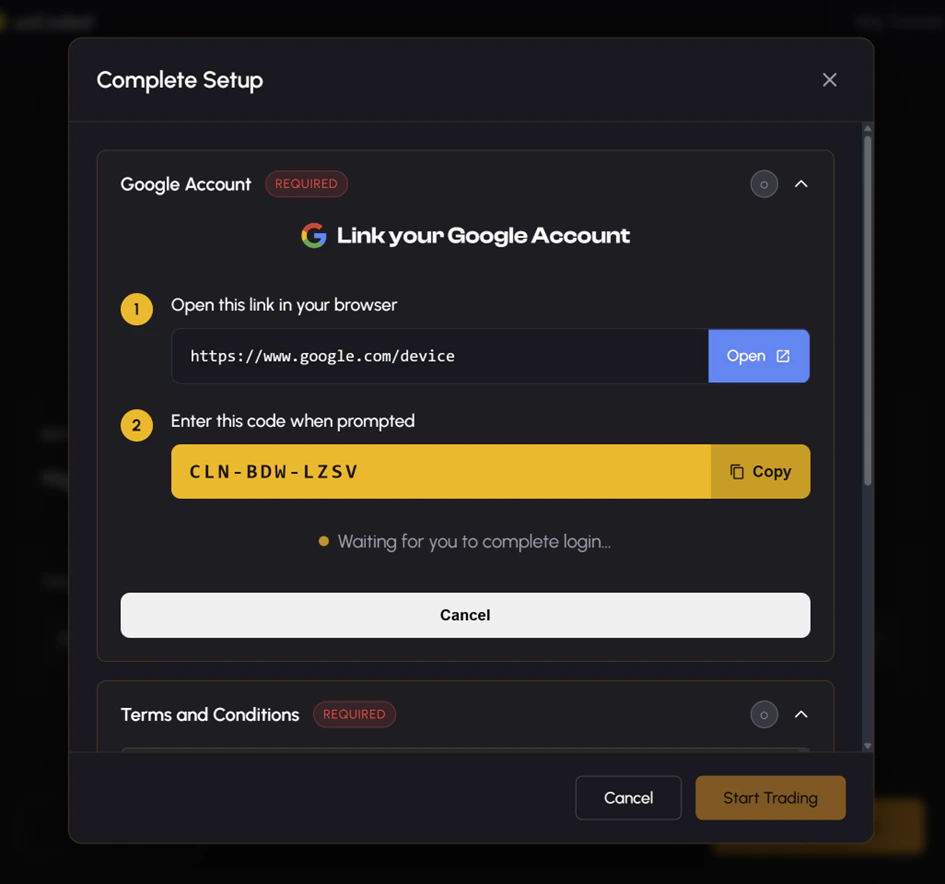
- Process: Open the provided Google device link and enter the unique code shown on your dashboard.
- Important: You must use the same Google Account you used to register at uncoded.ch/account where your Exchange UID /API Key is deposited.
- The system will display a confirmation once the account is linked and ready.
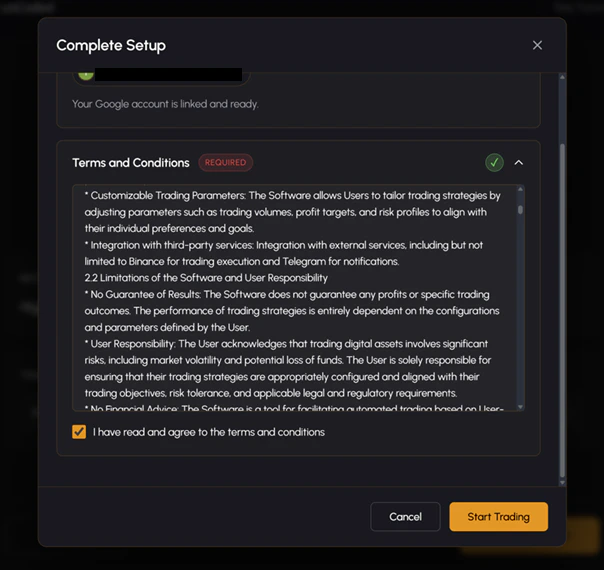
- Review the Terms of Service.
- Check the box: “I have read and agree to the terms and conditions”.
- Click “Start Trading” to go live.
Next Steps: Optimization & Advanced SettingsCongratulations! Your unCoded Trading Bot is now live and monitoring the markets in real-time.Now that the basic setup is complete, you can begin to fine-tune your strategy. To get the most out of your bot, we recommend exploring the Advanced Parameters in the settings. There, you can:
- Adjust Trading Modes: Switch between different operational modes to match changing market conditions.
- Fine-tune Parameters: Customize trade volumes, profit targets, and stop-loss thresholds to align perfectly with your risk appetite.
- Review Logs: Use the real-time “Bot Logs” to understand how your specific settings are performing in the current market.